
What you get
- Ten fields you can show or hide, each with a live sample so you know what you are switching off before you switch it off.
- An All fields switch at the top that turns the whole set on or off in one click.
- Three groups — Planning, Timing and Tracking — so the list reads as the three questions a card can answer.
- One setting for every project, applied in the list, the board and the compact view.
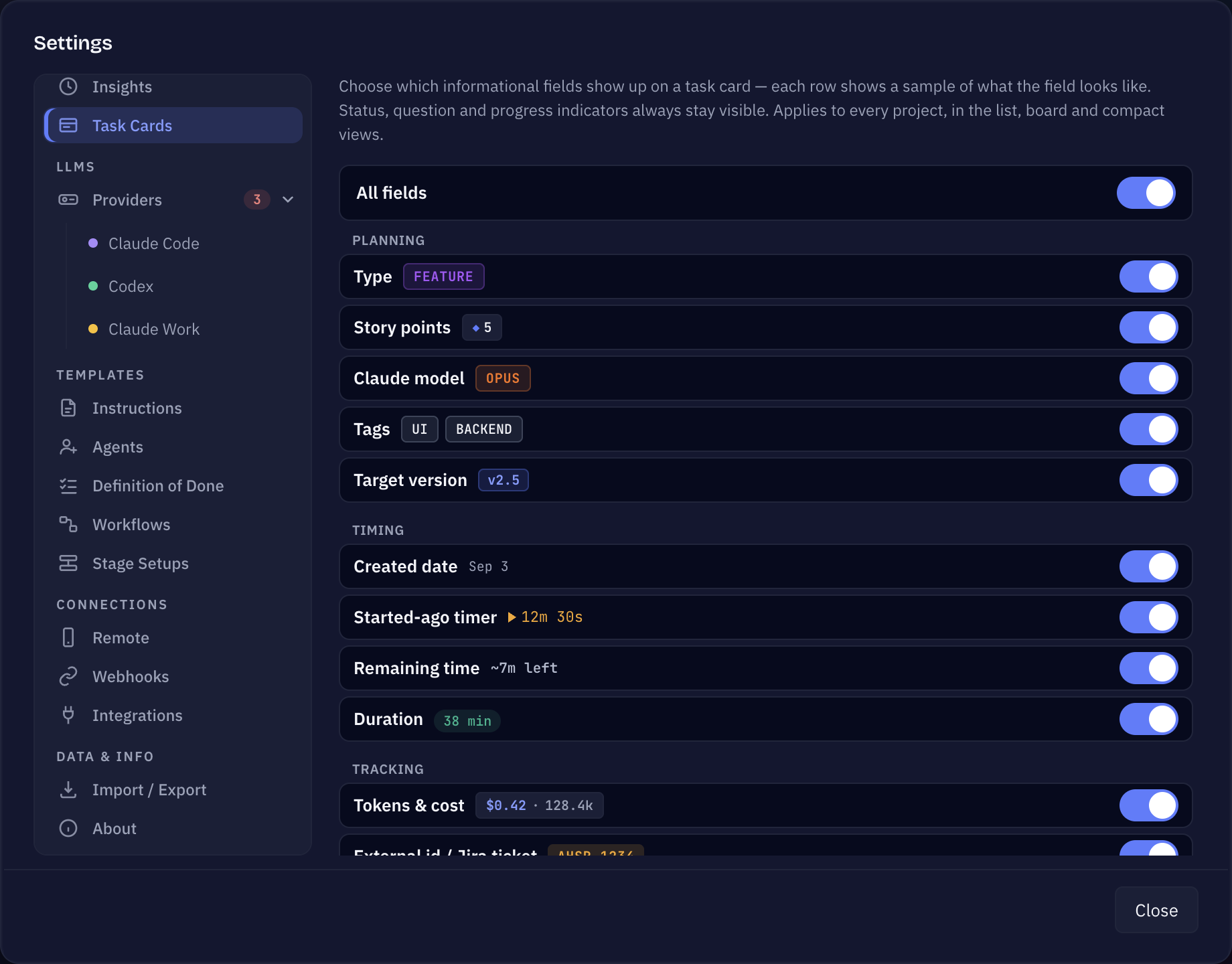
The fields
Planning
- Type — feature, change, bug or research.
- Story points — the complexity estimate.
- Claude model — which model the task runs on.
- Tags — the project tags on the task.
- Target version — the release the task is aimed at.
Timing
- Created date — when the task arrived.
- Started-ago timer — how long the current run has been going.
- Duration — how long the finished work took, on done tasks.
Tracking
- Tokens & cost — what the task has spent so far.
- External id / Jira ticket — the ticket the task came from.
How you use it
- Open Settings → Task Cards.
- Switch off what you do not read. A field you turn off disappears from the cards immediately — nothing is deleted, the task keeps the value and its details keep showing it.
- Use All fields when you want the opposite of your current setup: everything off, then switch back on the two or three you care about.
What stays visible whatever you do
Status, a question waiting for you and the progress of a running task are never hidden. Those three are how you see that something needs you at all — a card that could hide them would defeat the point of the board.
¿Te ha servido esta página?
Gracias — anotado.