
What it is
An optional step counter and time estimate on a running task's card, on by default. While it is on, the agent writes the phases it is about to work through onto the task as soon as it starts, and the card shows how many of them are done plus a remaining-time range — never a single false-precision number.
What you get
- A breakdown of the steps a running task is actually going through, not just a status pill.
- A percentage that counts finished steps only — it never claims 100% while work is still going.
- A remaining time that blends this run's own pace with how long work of the same size really took in this project — learned from its finished tasks in AI Learning. Until a project has learned enough, the card says no learned time instead of guessing.
- While the task waits for your answer, the countdown pauses (paused, ~20 min of work left) instead of ticking on, and time spent waiting is left out of durations and estimates.
Where you switch it
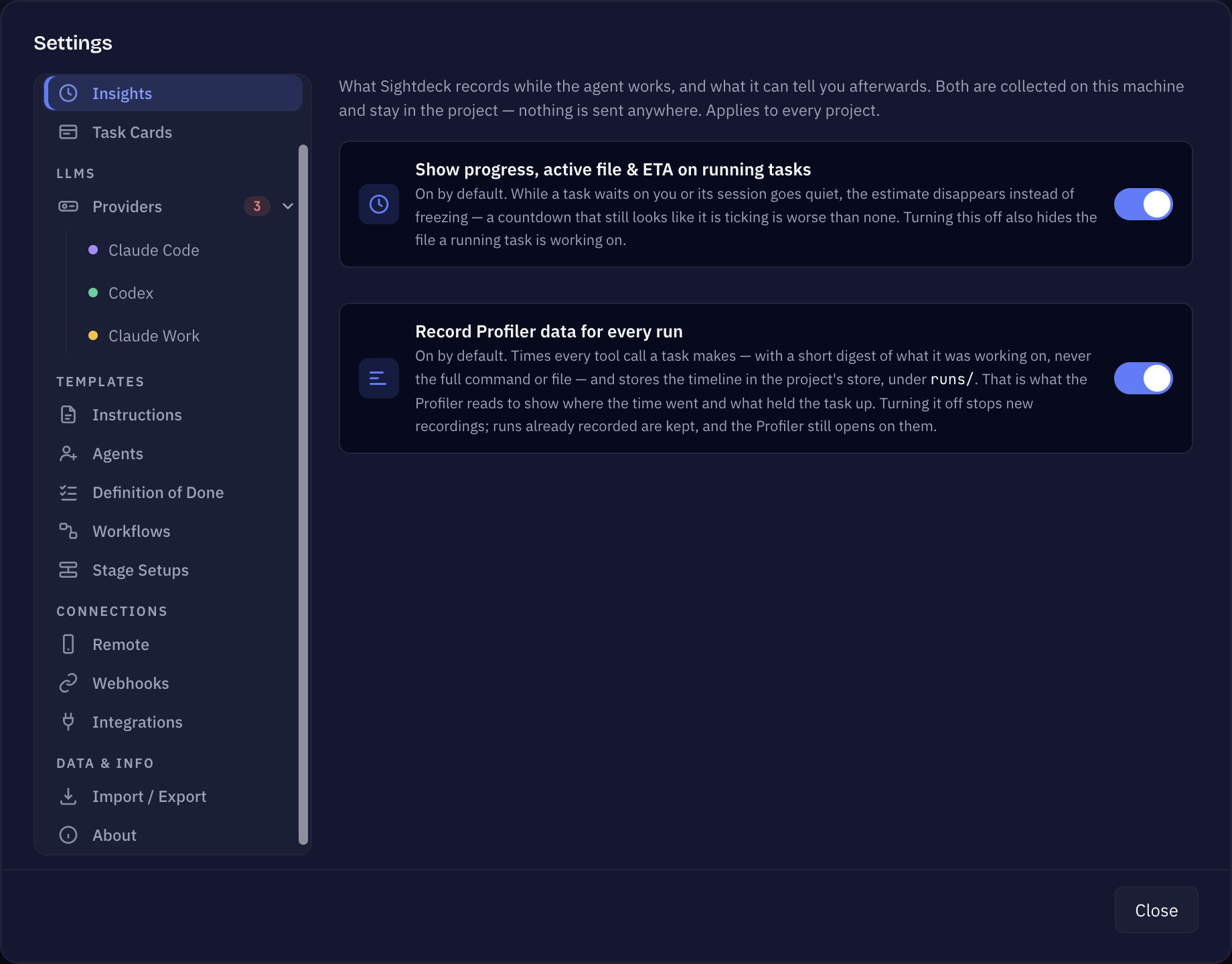
- Open Settings → Insights.
- Use the first switch, Show progress, active file & ETA on running tasks. This is a global setting — it applies to every project, not one at a time.
The second switch on the same tab, Record Profiler data for every run, is not part of Live Progress: it decides whether Sightdeck times each tool call so the Profiler can show where a task's time went. Turning one off leaves the other as it is.
While Live Progress is on, from the next task the agent starts, the plan and step counter appear on its card and on the Activity tab of its details on their own — nothing to configure per task. A running task opens on that tab.
Good to know
- It costs a little. Turning it on means a few extra calls per task — the price of the agent reporting its own progress as it goes.
- The plan is the agent's own estimate of the phases a task will go through, written once the task starts — a research task or a one-line fix may carry no plan at all if there is nothing to break down.
On by default, and what it reports
Live Progress is on unless you switch it off. Beyond the step breakdown and the remaining-time range, a running task also shows which file it is working on right now — the fastest way to tell "thinking" from "stuck".
A task without a step plan no longer shows a moving bar: a bar that tracks nothing is worse than no bar, so those tasks simply show their status instead.