
What you get
- One header control flips a project between List, Board and Roadmap — no sidebar detour.
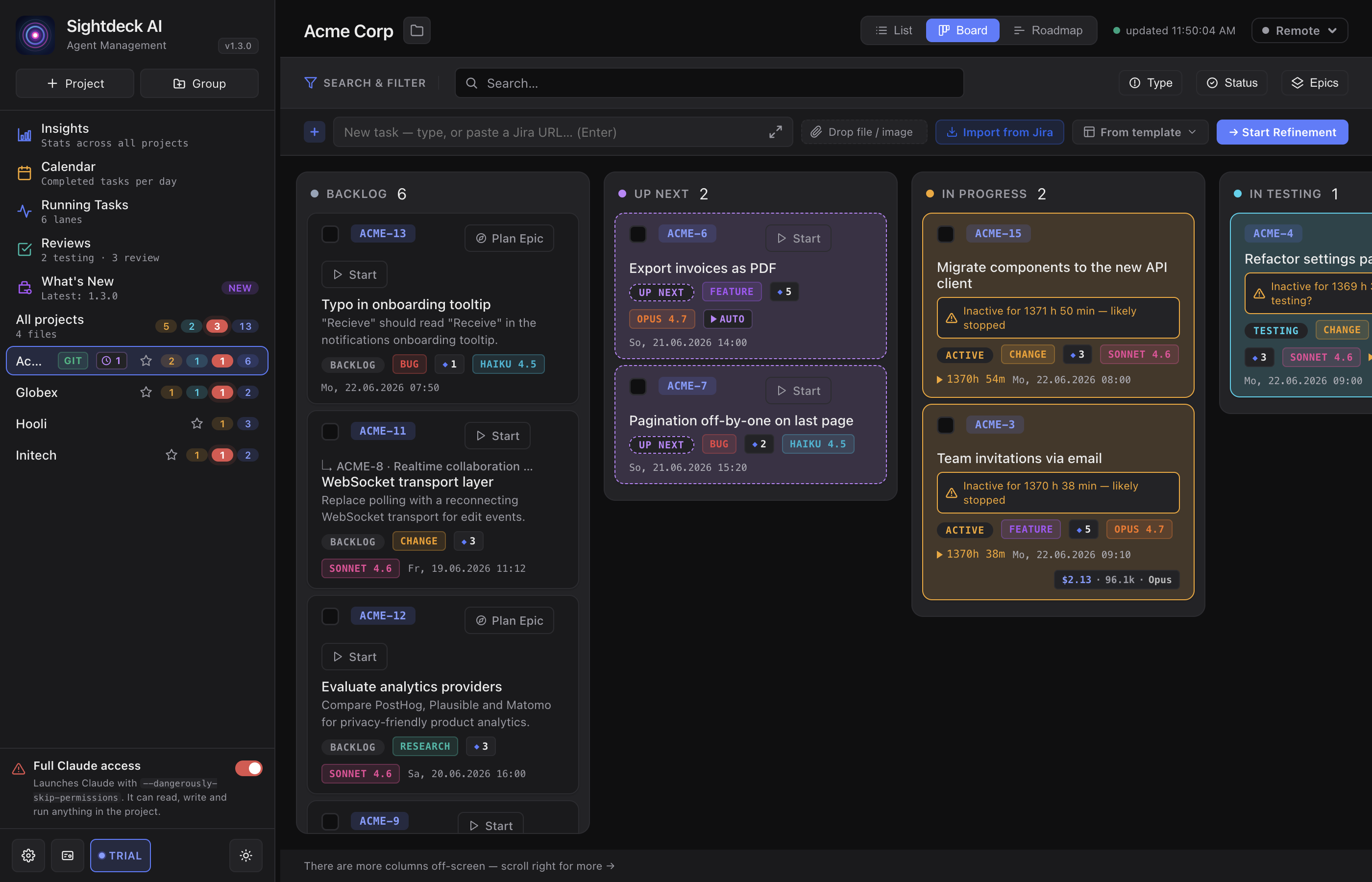
- The Board shows six columns in pipeline order: Backlog, Up Next, In Progress, In Testing, Needs You and Done.
- Your choice sticks across app restarts, so a project always opens in the view you left it in.
- Search, Status, Type and Tag filters work exactly as in the List — filter a status out and its whole column disappears.
How you use it
- Open a project (or All projects) in the left sidebar.
- In the top-right of the header, click Board. Your tasks appear immediately, grouped into columns.
- Click any card to open its details. Switch back to List when you want to reorder — see below.
Reading the columns
- Every task sits in exactly one column — the one matching its status. Epics and their subtasks each appear in their own status column; a subtask card names its Epic under the title, and a started Epic stays in its own column while its subtasks run.
- Backlog and Done show the full card (title, summary, meta). The running and waiting columns use a compact card so more fits at a glance.
- A task with a version set shows a version pill in the Backlog and Done cards.
- The Done column has its own recency window — Today by default, up to All — so a project with a long history doesn't load thousands of finished cards. A footer offers Load all when older done tasks are hidden.
- When a filter matches nothing, the Board shows a single "No tasks match your filters" state instead of a wall of empty columns.
In the List view
The List shows the same statuses as groups. Backlog, Up Next and Done can each be collapsed with the caret next to their heading, so a long queue does not push everything else off screen.
A queued task that cannot start yet says why instead of looking stuck: it waits for another task in its Epic, for a dependency, or to be classified by refinement. You see the reason in the queue of the Agents view.
Adding tasks on the Board
The Quick-Add bar stays at the top, same as in the List. A new task lands in the Backlog column and is confirmed with a toast ("Task created — added to Backlog.") until the card appears.
To change a task's status on the Board, right-click its card and pick Set status — one step, no detour through the details. With several cards selected, the same menu sets the status of all of them. There is no drag-to-change-status on the Board; to reorder tasks, switch to the List. For a time-based layout with dates and release milestones, use the Roadmap.