
What you get
- One Start button in the project head for your environment.
- A menu next to it with Stop, Restart, Health check, Show output and Last output.
- Live output while a command runs, and a short result when it finishes, such as “Started — Docker up (14s)”.
- A health check that turns the button into Stop while your environment is up.
Setting it up
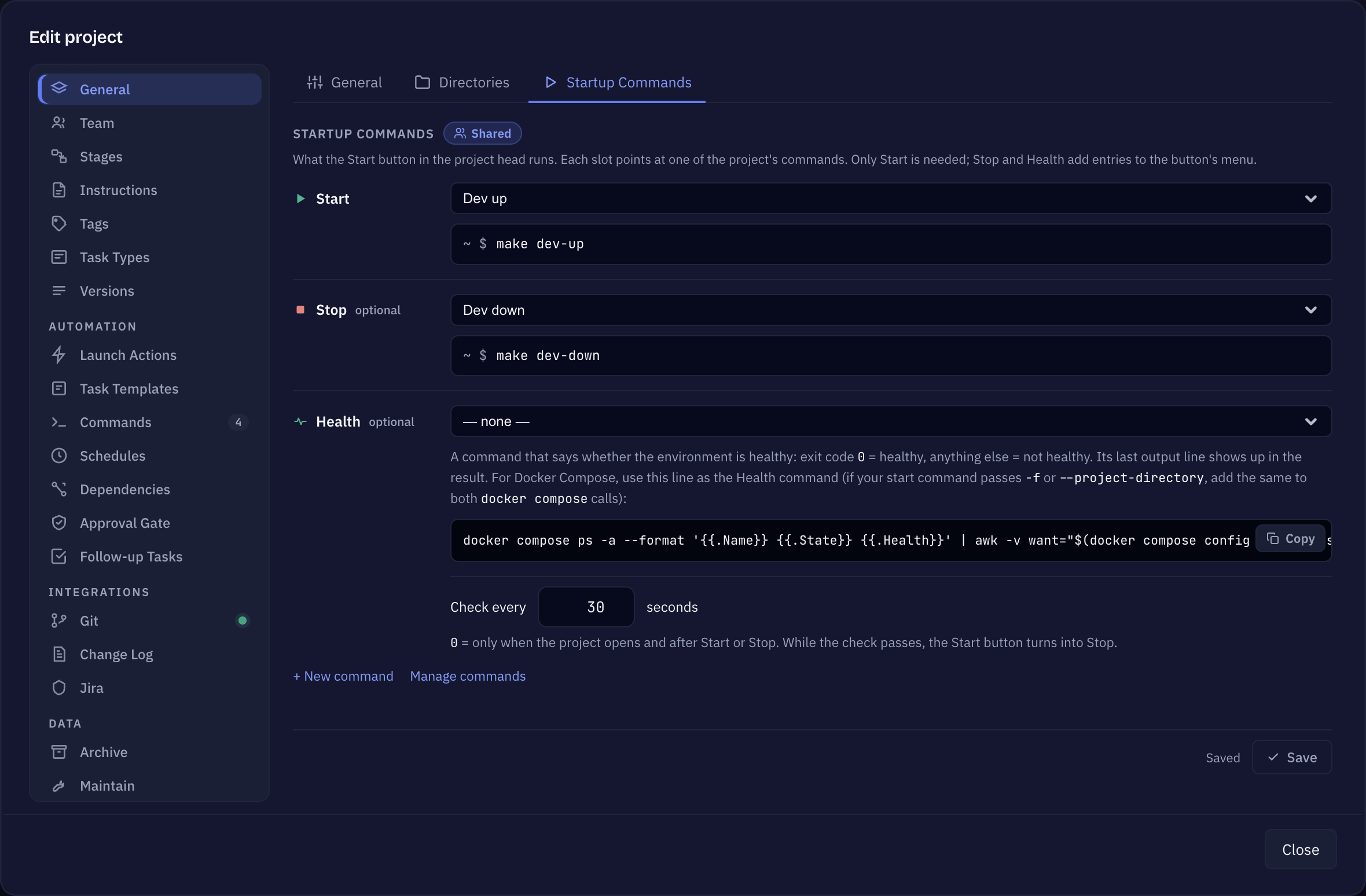
- Open Edit project → General and switch to the Startup Commands tab.
- For each slot, pick one of the project’s commands:
- Start — required; this is what the button runs.
- Stop — optional; adds Stop and Restart to the menu.
- Health — optional; a command that exits with
0when the environment is healthy and with anything else when it is not. Its last output line shows in the result.
- Set Check every … seconds for the health check.
0means: only when the project opens and after Start or Stop.
The slots point at entries of the project’s commands. + New command creates one, Manage commands opens the list — see Project commands. If a command a slot points at is deleted, the slot says so; pick another one or clear it.
For Docker Compose, the settings show a ready-made health command line to copy.
Using the button
- Start runs the start command. While it runs the button says “Starting…” with the elapsed time; click it, or pick Show output in the menu, to see the live output. Cancel in the menu stops a command that hangs.
- Restart runs Stop, then Start, and shows both in one output.
- Health check runs the health command now; the result reads Healthy or Not healthy.
- Last output shows the output of the last command with its exit code.
- Startup Commands… jumps to the settings.
While the last health check passed and a Stop command is set, the button turns into Stop and the menu offers Start in its place. With only a Start command there is no menu, just the button. Without a start command the button is dashed and opens the settings.
Multi-line commands
Commands run through bash -lc, so several lines, \ line continuations, && chains and small embedded scripts all work. The exit code of the last line is the result. A command set to run in a Terminal window opens there instead; its output and exit code are shown in that window, and after a Restart you press Start once the stop has finished.