
Add your first project
- Click Add Project in the sidebar — or drop a project folder onto the window.
- Pick the folder of any Git repository you work in. Sightdeck AI starts watching it for task changes and updates the board live.
- Set a prefix (e.g.
SD,MO,WB). The app prefills one from the folder name — override if a teammate already established a convention. - Optional: set a language (English or German) and a few tags for filtering. You can change all of this later.
The project now appears in the sidebar. Add as many as you want — they all stream into the same dashboard.
Drop your first idea
- At the top of the backlog, click the Quick-Add field.
- Type the request — a sentence, a paragraph, even a pasted Slack rant. Hit Enter.
- Sightdeck AI creates the task in
backlogimmediately and sends it to Refinement in the background. Independent topics become separate tasks; pieces that only make sense together become an Epic parent plus subtasks. - While Refinement runs, the card carries a Refining… pill. When it settles, title, summary, estimate, story points and model are filled in. Click the card to edit anything.
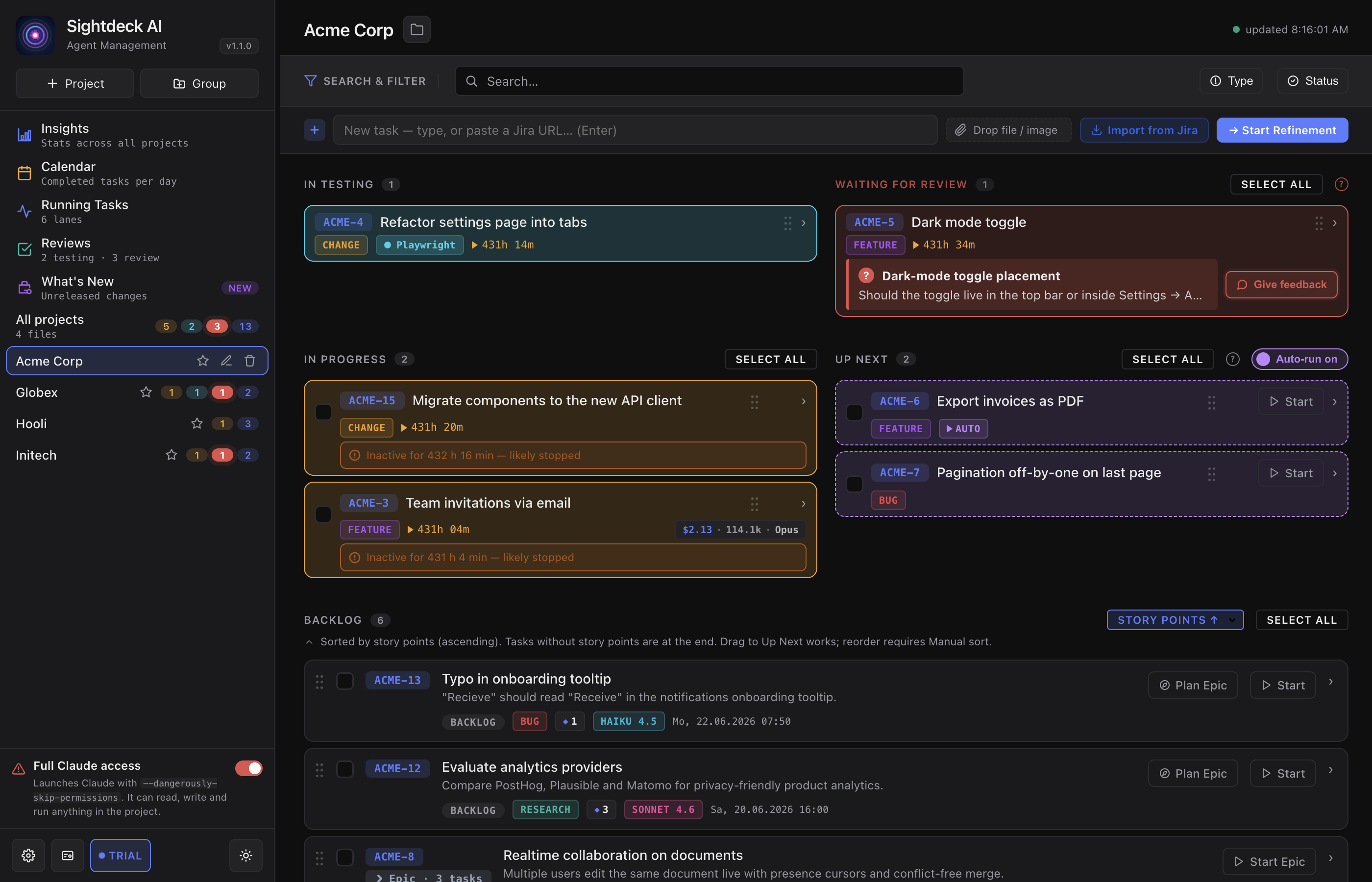
Start the task
- Hover the task. Click the small ▶ Start button on the right.
- A fresh Claude CLI session opens in the project's directory, the task prompt is pre-loaded, and the status flips to
active. - The task hops from the backlog into Running Tasks as its own lane.
- When Claude finishes, the lane shows
donein green. Done.