
What you get
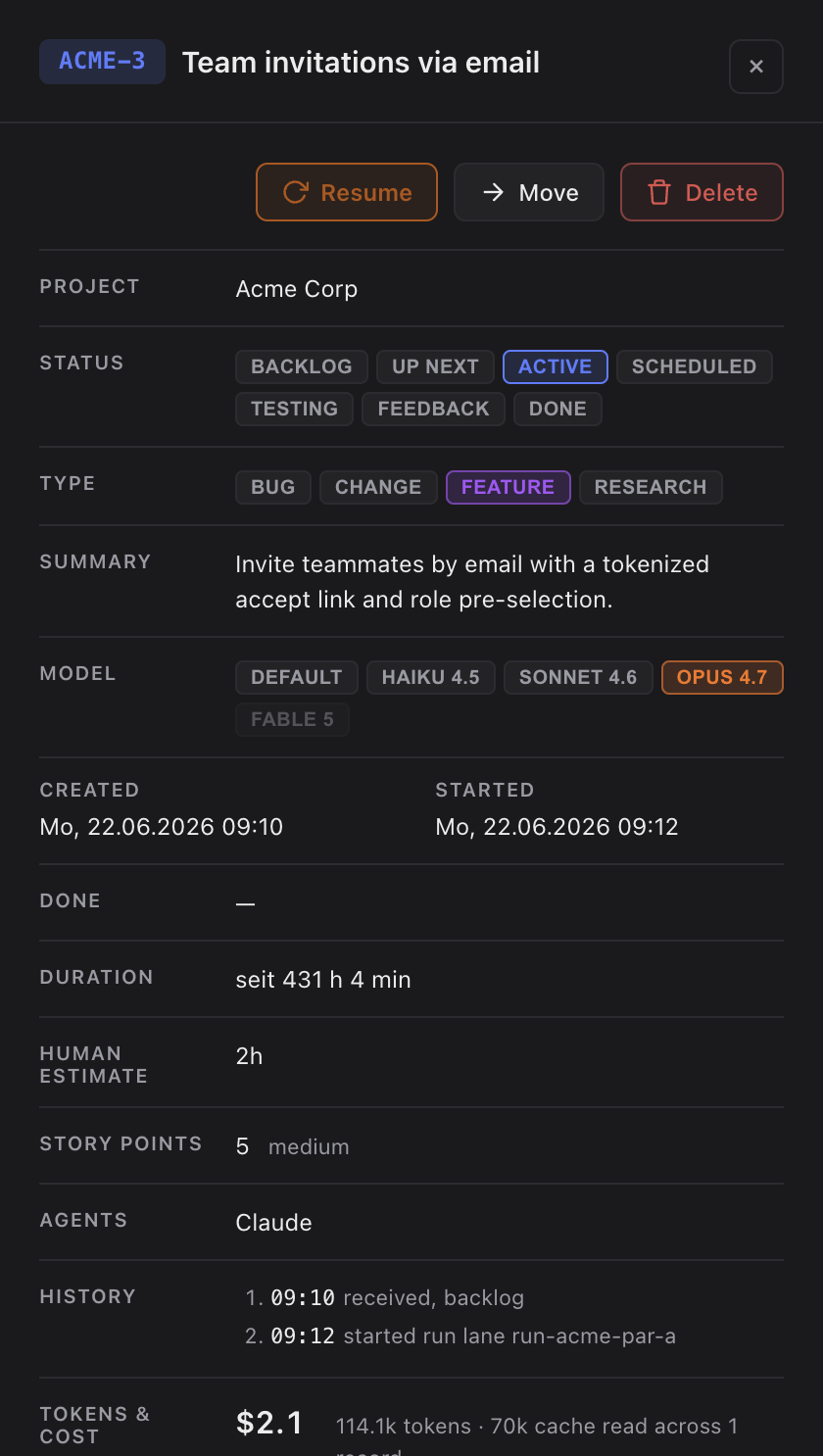
- A Resume section appears in the task detail panel as soon as the task has been started at least once.
- It shows the exact command to continue that Claude Code session —
claude --resume <session-id>— plus the task's ID, both with their own copy button. - Works regardless of whether the task was originally started from the app or from a terminal.
- Only the most recent session is kept — one command, always up to date, no list to sift through.
How you use it
- Open a task that has already been started, click it to open the detail panel.
- Find the Resume section, directly above the task chat.
- Click the copy button next to
claude --resume <session-id>to copy the command. - Paste it into your terminal in the project folder and press enter — Claude Code picks up the exact same session, with its full history.
- Need to reference the task elsewhere? Copy the task ID the same way from the entry right below the command.
Why it only shows up after a first start
A resume command only makes sense once a Claude Code session actually exists for the task. Before the first start there is nothing to resume, so the section stays hidden until you run the task at least once.