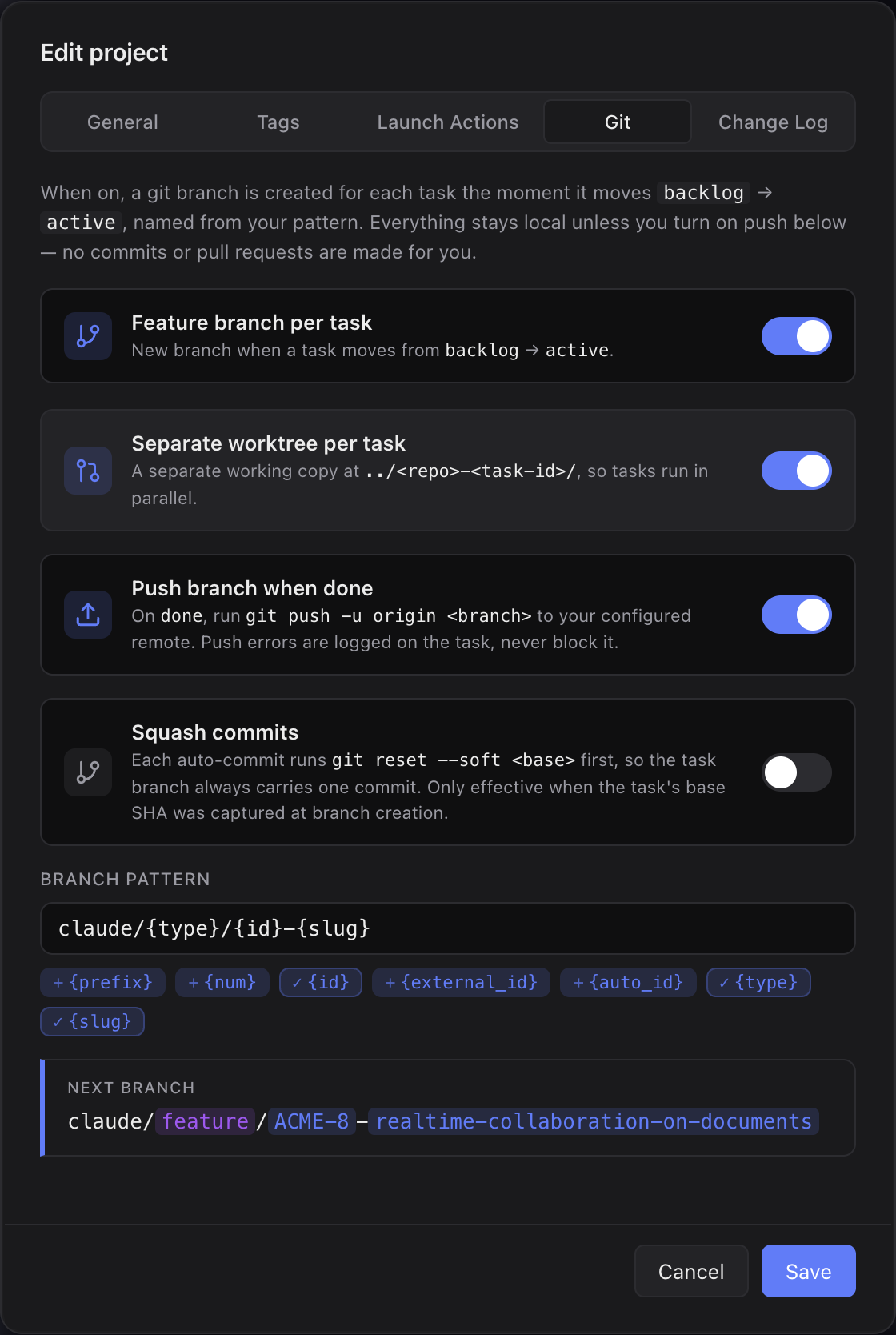
What you get
- Every task lands on its own branch, named consistently, without you typing anything.
- Optional worktrees let several tasks run in parallel without fighting over the same working copy.
- A live preview shows exactly what the next branch will be called before you settle on a pattern.
- Optional auto-push keeps your remote in sync when a task finishes. By default nothing leaves your machine.
How you use it
- Open Edit project → Git and turn on Feature branch per task.
- Pick a branch pattern — the preview under the field shows the next real branch name as you type, with the dynamic parts highlighted. The default works for most people; only change it if your team follows its own branch-naming convention.
- Optionally turn on Separate worktree per task and Push branch when done.
- Save. From now on the branch is created the moment a task moves
backlog → active, and commits land on it as the work progresses.
Worktrees and Epics
In plain mode the branch is created right in your project folder. In worktree mode Sightdeck AI creates a separate working copy next to your repo, so a parallel task can't disturb your current checkout. When the task is done, a cleanup button on the card removes that worktree — so you can inspect it first. Sightdeck AI never stashes; the working tree stays yours.
Subtasks of an Epic don't each get their own branch — they share the Epic's branch (and its worktree), so every slice of the Epic lands together.
Checkpoints and squash
While a task runs, Claude commits deliberate checkpoints to its branch — typically after a green check and before a risky change — so a previous state stays reachable. The checkpoints are non-fatal: a clean tree or a rejected commit just becomes a history entry, never a blocked run.
If you'd rather keep a single commit per task, turn on Squash commits in Edit project → Git. The branch then always carries exactly one commit on top of where it started, and the latest checkpoint message is the one you see.