What you get
- Large tasks stop sitting in the backlog as untouchable monsters — planning turns them into a handful of small, ready-to-start pieces.
- Claude drives the breakdown: a few rounds of focused questions, then a concrete plan.
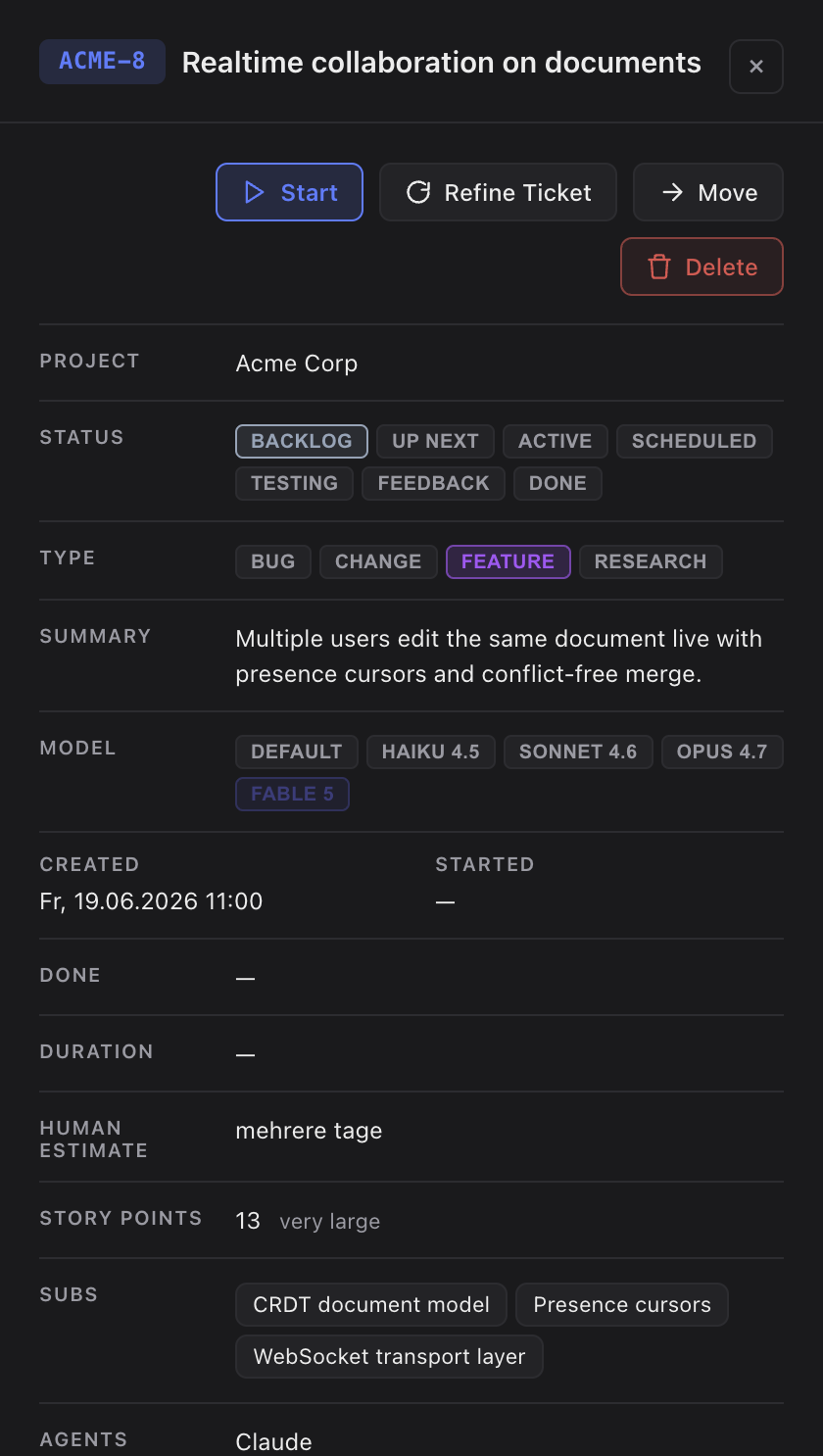
- The parent stays put — it keeps its estimate and kind, and just gains a subtask list and the
Epic · Nchip. - Planning never auto-starts a subtask — you pick the moment with Start Epic.
How you use it
- Open a backlog task that feels too big — or unclear — to start.
- Click Plan Epic. It shows only when the task is in
backlog, has no subtasks yet and is already classified. - A new terminal window opens and Claude starts planning. It reads the task's title, summary and concept, then asks focused questions about scope and acceptance criteria.
- Answer each round — at most three before Claude produces a plan.
- Claude creates the subtasks under the parent and prints the list. The parent now shows
Epic · N; click Start Epic when you're ready.
When Sightdeck AI suggests it
When refinement decides a task would benefit from planning, the Plan Epic button pulses gently. That happens when the task scores high on complexity, or when the original wording was too vague to implement directly. While the dialog runs, the card shows an animated Planning… pill next to the status chip.
The pulse is a suggestion, not a gate — you can still hit Start and run the task in one go. Skip planning for tasks that are already small and clear, for tasks that already have subtasks (add more with + Subtask), and in the "All projects" view, which has no single project to plan into.