When to do this
Reach for an Epic when a task lands at a high story-point count or clearly splits into three or more independent pieces. If you're unsure how the sizing works, read Story points & duration — a high count is the signal to plan rather than start.
Steps
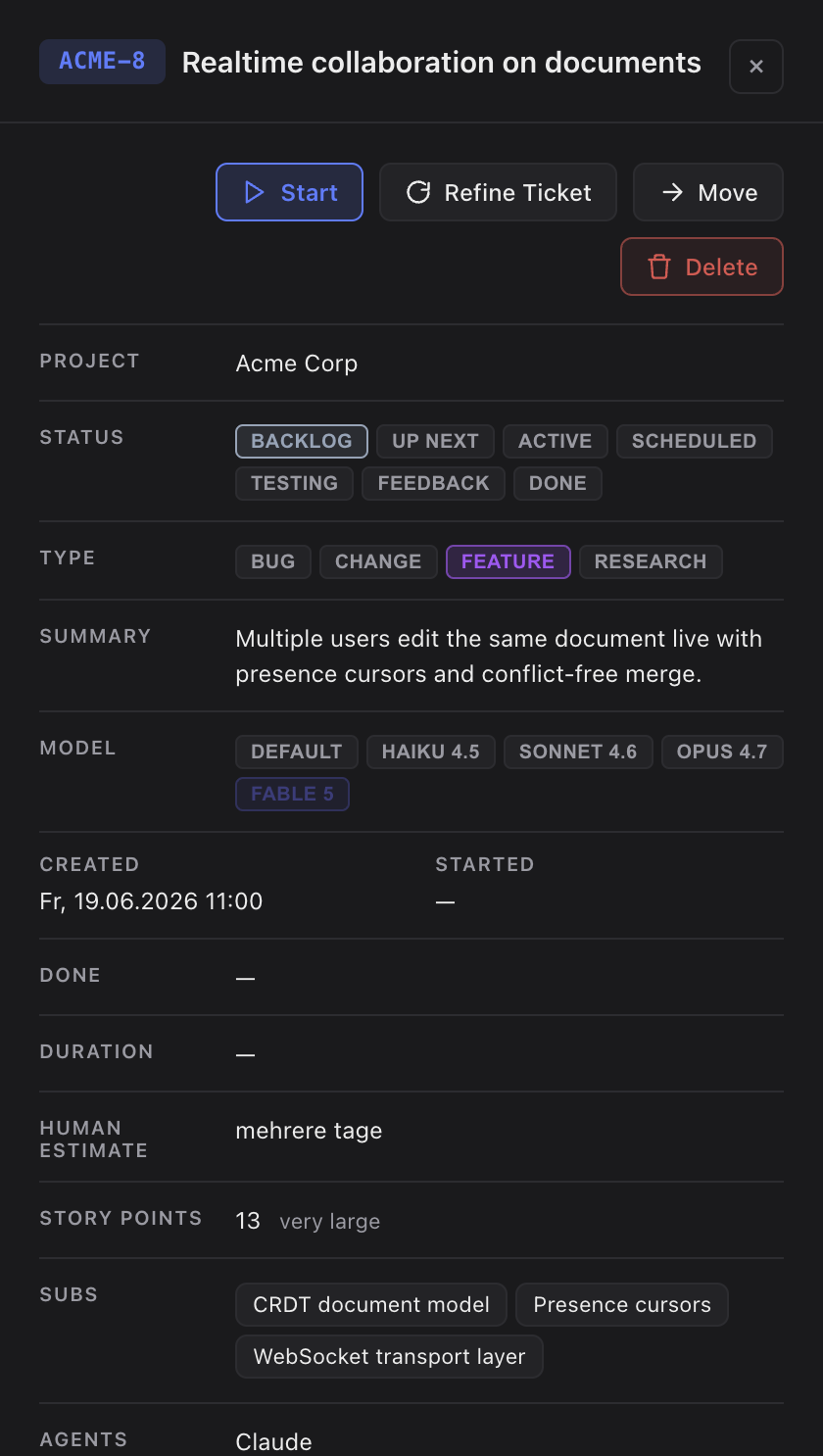
- Spot the oversized task. After refinement, a task with a high story-point count pulses its Plan Epic button — that's Sightdeck AI suggesting the task is Epic-sized. An Epic is just a parent task that groups smaller subtasks under one goal. Don't worry about the exact number: if the button pulses, the task is a candidate.
- Start a planning dialog. Click Plan Epic. A short guided dialog asks a few focused questions about scope and acceptance criteria — you answer, no code is touched yet. The full flow is in Planning mode.
- Let it create the subtasks. When the dialog wraps up, Sightdeck AI adds the planned subtasks and links them to the parent. The parent stays in the backlog and now shows an
Epic · Nchip — see Epics and subtasks for how parents and subtasks relate. - Launch the Epic. Hit Start Epic on the parent. Sightdeck AI runs the subtasks one after another in a single lane — you don't start each by hand. The order and locking rules are covered in Epics and subtasks.
- Follow the run and close the Epic. Watch the subtasks move through their lifecycle in Running tasks. When the last one finishes, the chip switches to
Epic · N ✓— open the parent and set it todoneto close the Epic.
What you get
- A big, vague task becomes a set of small, refined subtasks you can reason about.
- The subtasks run in a defined order, one at a time, instead of one giant unpredictable session.
- The parent Epic stays as the single place that holds the goal and the progress.