The three run modes
- Run in parallel — one Claude session per task, all at the same time. Best when the tasks are independent.
- Run in order (serial) — a single Claude session works through the tasks back-to-back. Use when one builds on the previous.
- Run with Autopilot — Sightdeck AI checks the tasks for file overlap and picks the safe mode itself: same files run serial, independent files run parallel.
What you get
- Hand half a sprint to agents in one click, instead of opening every task.
- You always see why a mode is recommended — a pill explains the reasoning before you click anything.
- Autopilot removes the decision when you don't want to think about parallel versus serial.
- Cluster suggestions surface ready-to-run bundles you would otherwise assemble by hand.
How you use it
- In the backlog, tick the tasks you want. A run bar appears at the bottom of the window with the count, a recommendation pill and the action buttons.
- Pick a mode: Run in order, Run in parallel or Run with Autopilot.
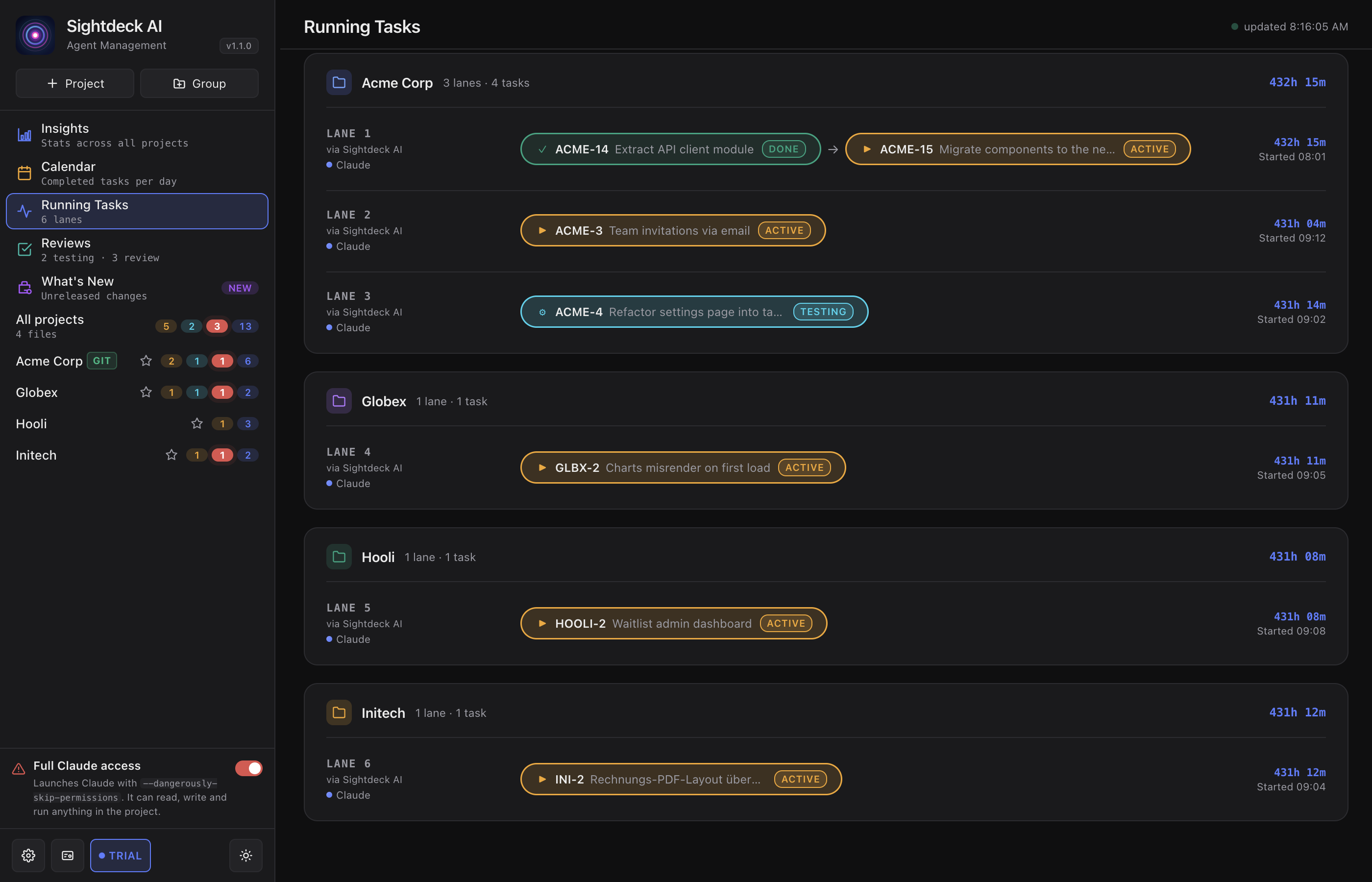
- Confirm — all tasks move into Running tasks and start.
Cluster suggestions
Sightdeck AI groups similar backlog tasks on its own and shows each group as a collapsible band above the list. A band carries a short label, the reason for its suggested mode, and the tasks it covers.
Hit ▶ Run on the band to fire the bulk start directly — pre-selected and pre-moded, no manual work. Dissolve hides a suggestion for the current session.