What you get
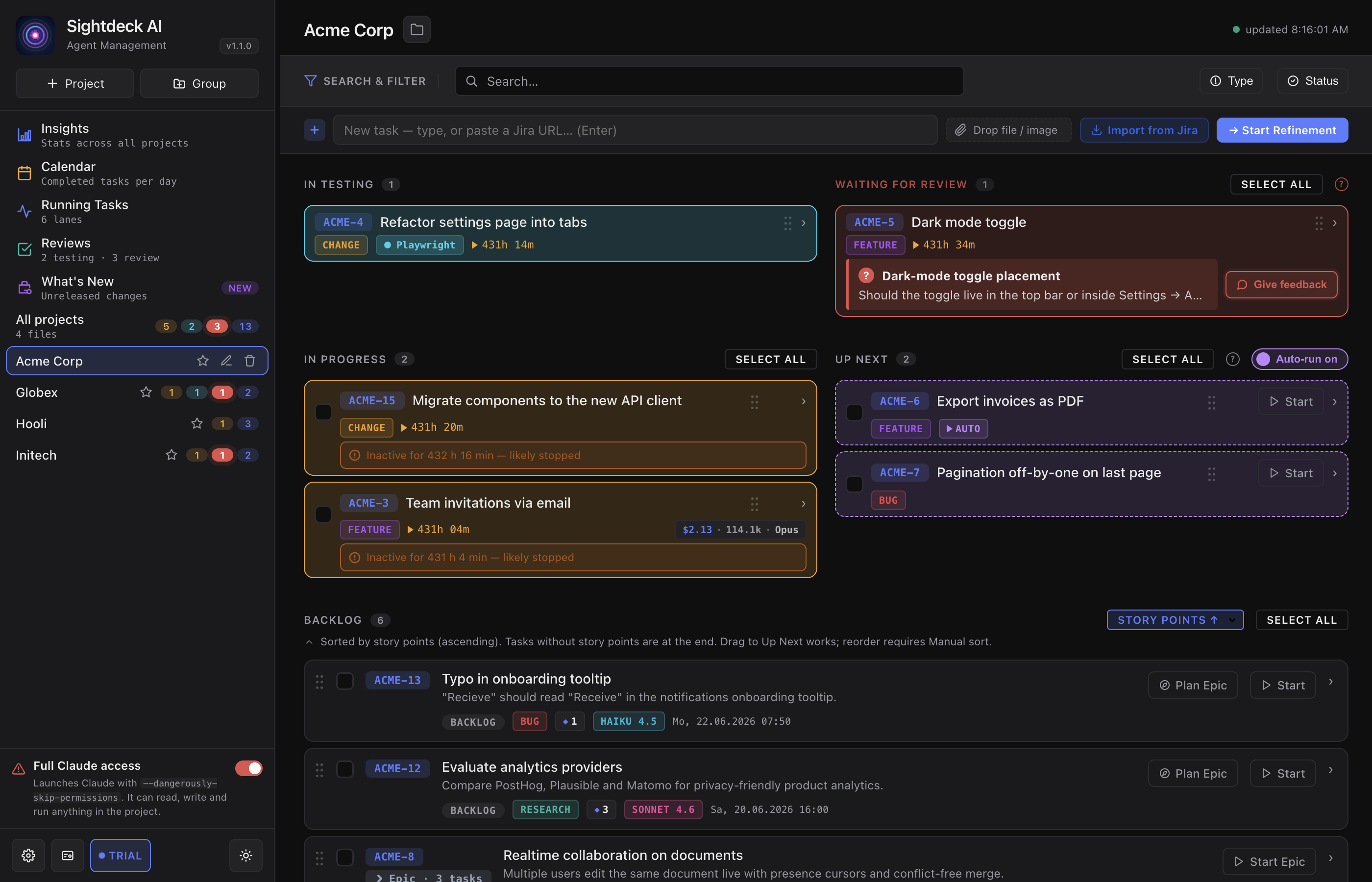
- No agent stalls unnoticed in front of a "Should I do A or B?" prompt — you see at a glance which run needs you and which keep working.
- The open question sits right on the card, so you don't have to dig through chat to find it.
- Long questions stay readable: a short topic line shows bold, with the full text one click away.
How you use it
- Let your agents run. Red, pulsing cards appear in the Needs You column as soon as anyone is waiting.
- Read the question on the card, or click it for the full text.
- Answer in the matching terminal, or use the Give feedback button on the card.
- As soon as you reply, the task flips back to
activeon its own and the column clears.
When Claude answers you
The same panel works the other way round for research tasks. If you gave Claude a question to investigate rather than code to write, open the task and Claude's answer is the first thing you see — a highlighted Answer block under the action row, open by default once the answer is written.
You don't have to expand the concept and hunt for the result; the full reasoning stays one section below if you want it. While Claude is still working, the block shows a short pending note instead of empty content. To gather answered questions and pending reviews across all projects in one place, use the Reviews view.