
What you get
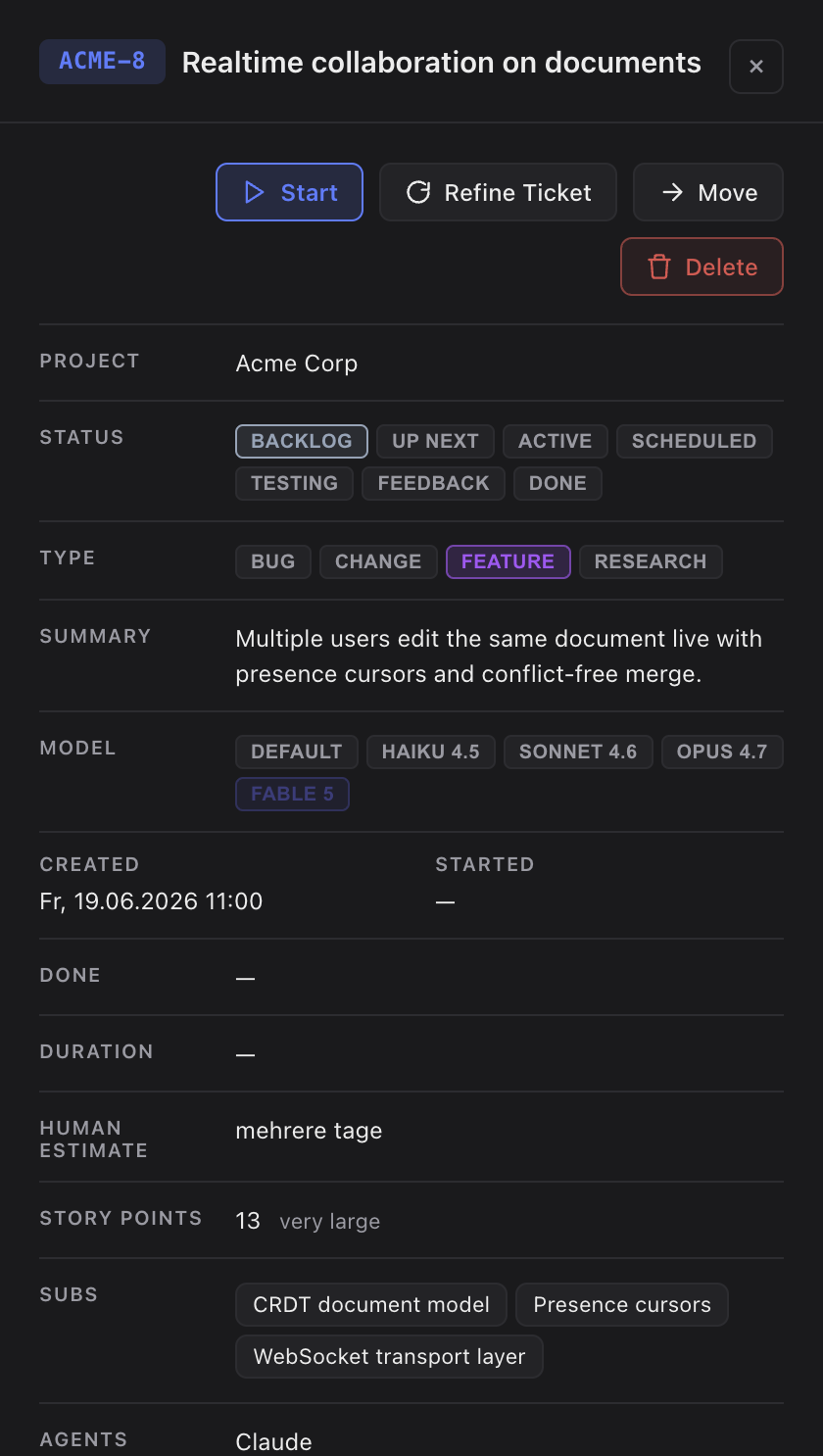
- Big tasks become Epics in one click — add a subtask and the parent starts tracking it.
- Start the Epic and every open subtask runs one after another in a single lane, in the order you arranged them.
- Start a single subtask on its own and it runs in parallel to anything else, in its own lane.
- While any subtask is still running, the parent locks so you can't accidentally start or delete it mid-run. The chip shows
Epic · N ✓once every subtask is done.
How you use it
- Add a subtask. Hover a task row in a single-project view, click the + next to Start, type a short title and hit Enter. The subtask lands in
backlog, linked to the parent. - Reorder. Click the
Epic · Nchip to expand the parent, then drag subtasks into the order you want. That order is the one the Epic uses. - Start the Epic. Click Start Epic on the parent to run the subtasks back-to-back in one lane.
- Or start one subtask alone to give it its own lane. The parent locks the moment a subtask starts.
- Close the Epic. When the chip shows
Epic · N ✓, open the parent and set it todone— Sightdeck AI never closes it for you.
Good to know
- Subtasks live in the same project as the parent — the + button is hidden in "All projects".
- Epics are one level deep: a subtask can't have its own subtasks. Model deeper structure as linked peers in the concept.
- A subtask in
testingorfeedback_requiredalso shows up in the top-level In Testing / Waiting for Review groups, with a label pointing back to its Epic. - Unclassified subtasks block the Epic start — run refinement first. To break a vague task into subtasks through a guided dialog, use Planning mode.