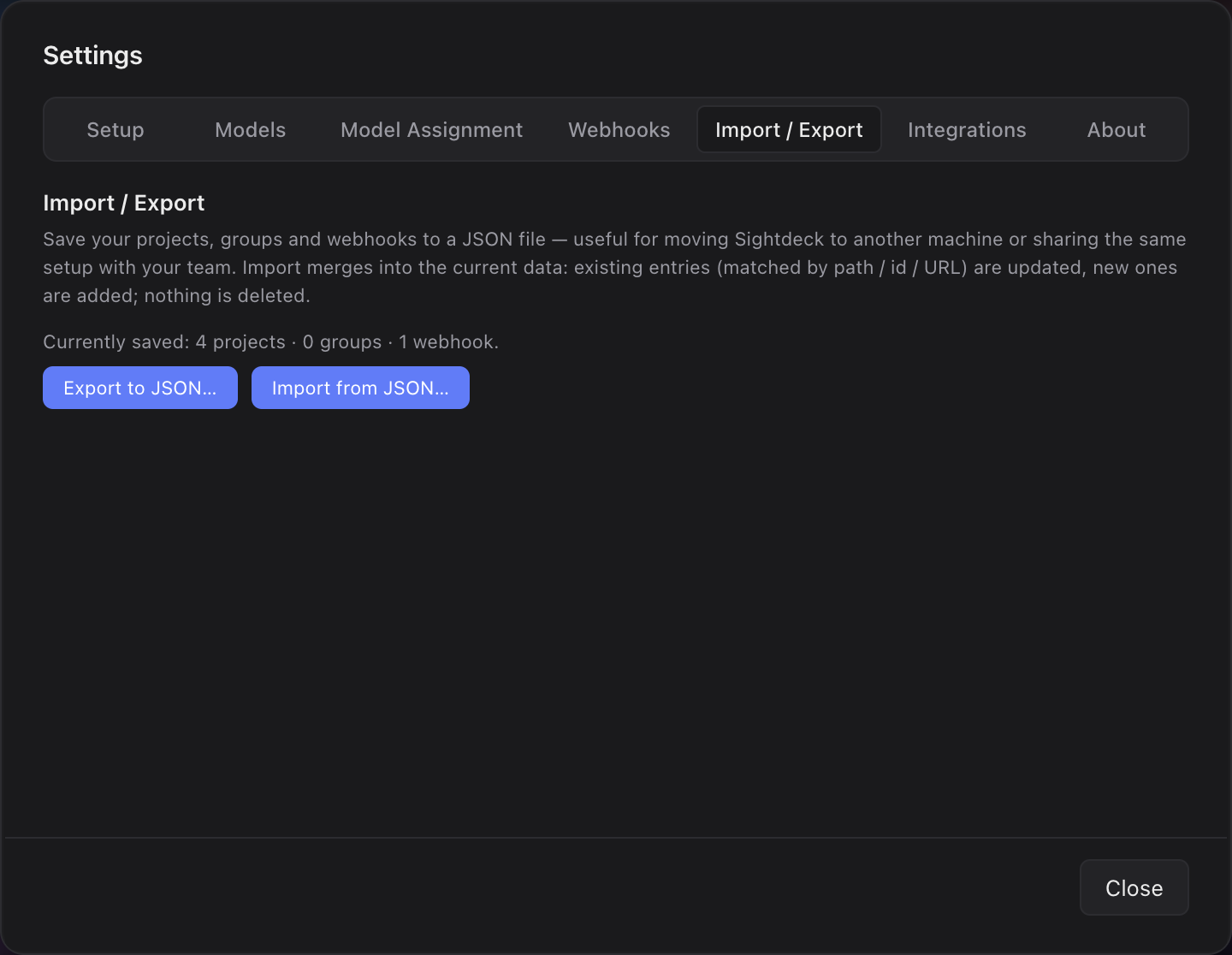
What it covers
- Registered projects — path, prefix, language, tags and mode.
- Project groups.
- Webhook URLs and tokens.
Your tasks, concepts and attachments are not in this export. They live inside each project's own folder and travel with the repository through git.
What you get
- Moving to a new machine takes seconds — no clicking through every add-project dialog.
- A whole team can share the same project set, groups and endpoints from one file.
- Safe by design: import updates matching entries and adds new ones, but never deletes what's already there.
How you use it
- Open Settings → Data and click Export, then pick a save location.
- On the target machine, open Settings → Data → Import and select the file.
- Sightdeck AI shows what was added versus updated.
- Clone the project folders via git and their tasks come along automatically — no extra step.
The path and prefix that travel in the export are the same ones you set when you add a project folder.