What you get
- Bulk creation of Sightdeck tasks from the open Jira tickets assigned to you — no ticket-by-ticket pasting.
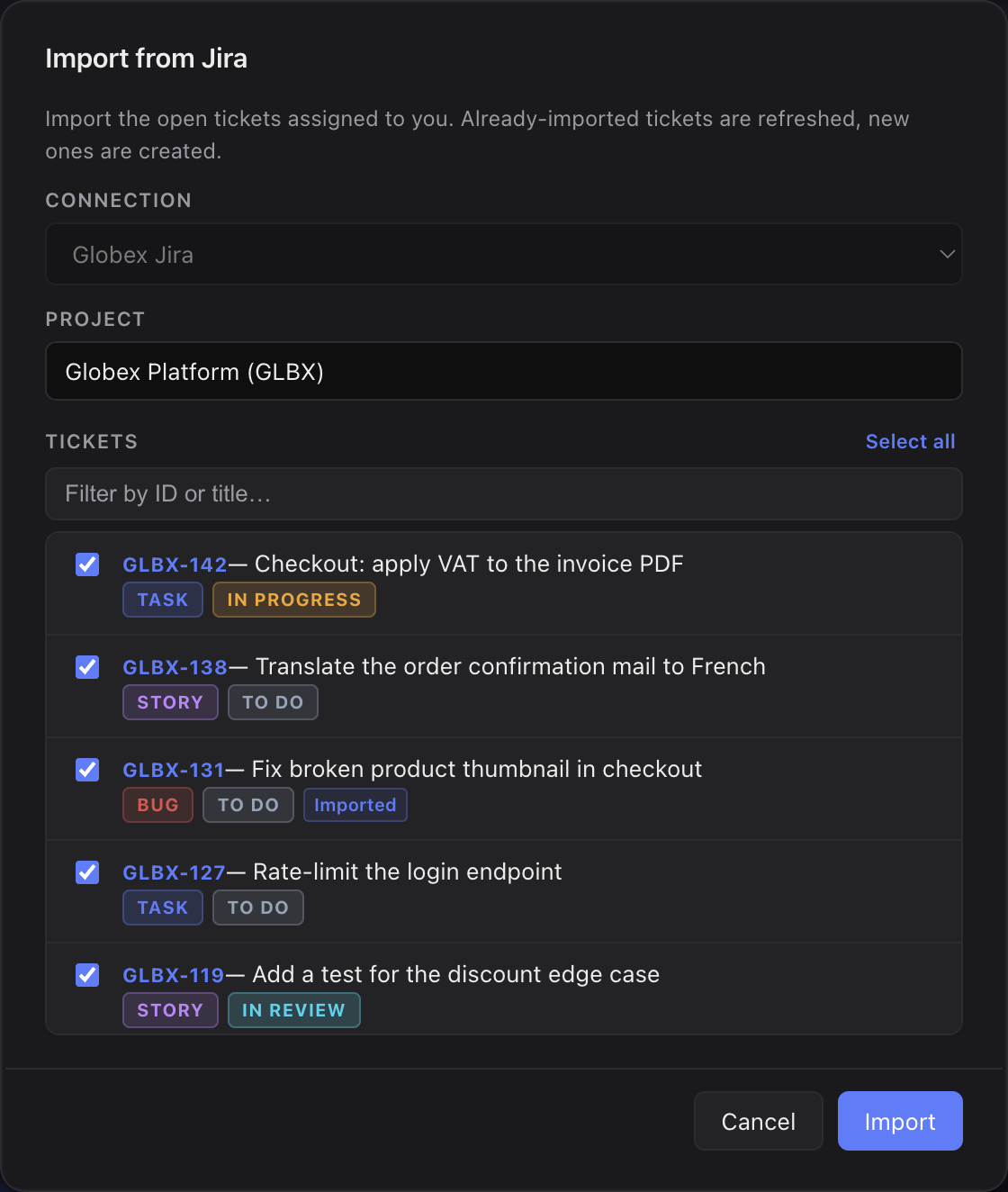
- A preview of every open assigned ticket, pre-checked, so you only uncheck what you don't want.
- Safe re-runs: tickets you already imported are refreshed, new ones created — never duplicated.
- Every imported task keeps its Jira reference and shows a live status pill, so you see when something moves in Jira.
How you use it
- Add a Jira connection in Settings → Integrations (host, email and API token).
- Open a project and click Import from Jira in the quick-add bar — it appears only once an enabled connection exists.
- Pick the connection and the project. Sightdeck AI loads your open, unresolved, assigned tickets and pre-checks them all.
- Filter by ID or title, use Select all to toggle the visible set, and uncheck anything you want to leave behind. Tickets already in Sightdeck carry an Imported badge.
- Hit Import. The summary tells you how many tasks were created and how many were updated.
Behind the scenes the wizard matches on the Jira key: already-imported tickets are refreshed in place (skip + update), new ones are created and routed through the normal auto-refinement. Run it as often as you like — the backlog stays clean.
Import vs. single-ticket link
The wizard is for pulling many Jira tickets in at once. To attach a single external reference to one task instead, paste the ticket URL or drop a screenshot into the chat — see Jira integration. Bulk import brings in many tickets at once; a single ticket links one at a time.