What the skill does
Once installed, the skill takes over task discipline for you. Even a rough prompt like “do X” becomes a clean task, and Claude keeps the status current without you having to ask.
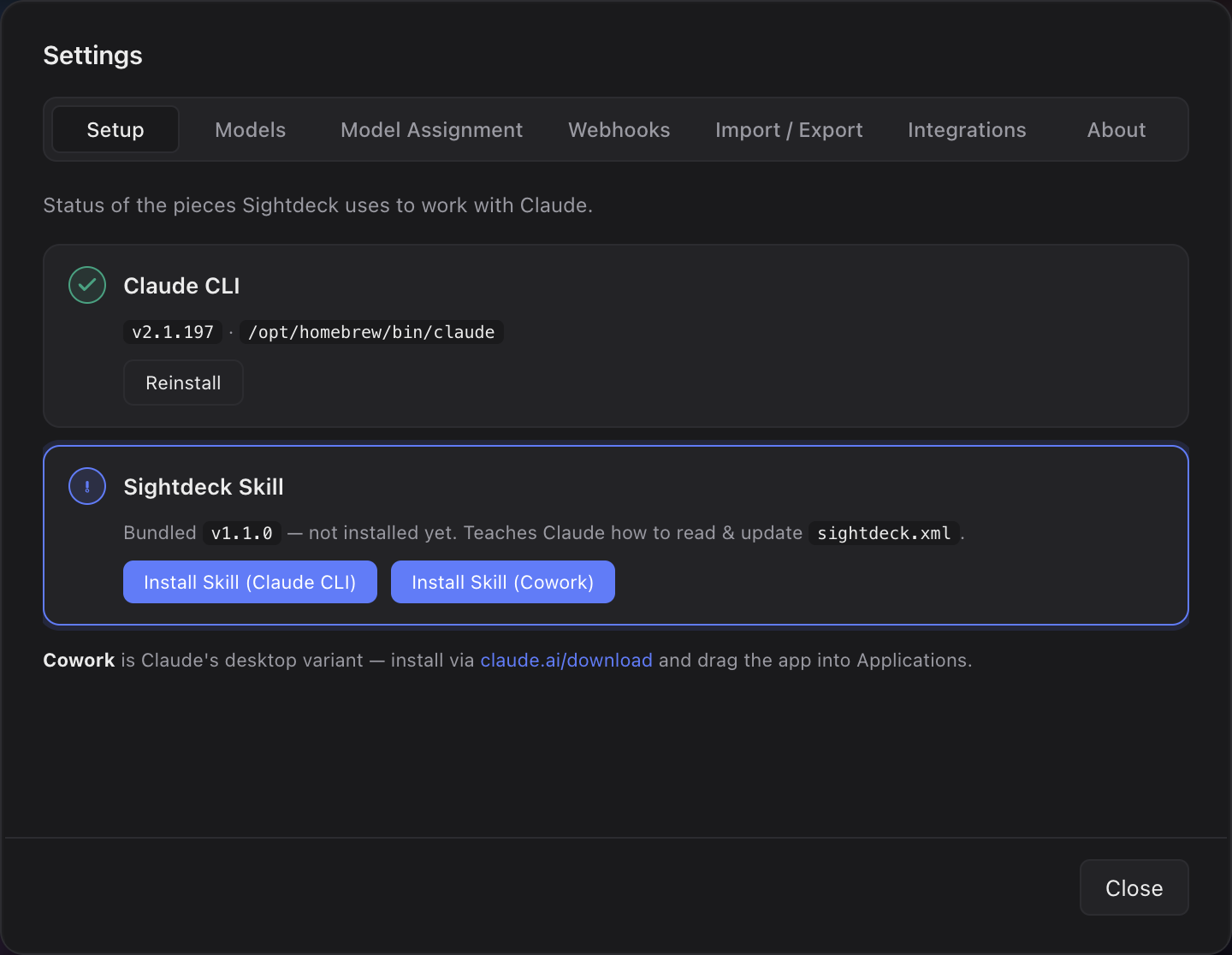
- Install the skill once into your Claude setup — the cog icon → Setup tab shows the steps.
- Give Claude a task in your project. The skill creates it and sets it to
active. - While Claude works, the status moves along on its own. A test runner flips the task into
testingautomatically, so you see verification happening. - When the work is finished, the task lands on
done— visible in the app, logged in its history.
Works with or without the app
The skill is self-contained. Even without the desktop app open it keeps the same lifecycle and writes everything to its task file — no app required.
Open the app later and it reads that file, showing the full history. Nothing is lost when you switch machines or hand a project to a teammate over git.
Keeping the skill up to date
After an app update, a one-shot popup tells you when the bundled skill is newer than the one in your Claude setup. It is informational only — it never blocks and never installs on its own.
- Start Sightdeck AI after an update. If a newer skill is bundled, the popup names both versions, once per new app version.
- Open the cog icon → Setup tab → Install skill when you are ready. The red dot on the cog reminds you until the versions match.