What you get
- Start a stored, per-project prompt from an external button — kick off a review, a build check or any recurring flow from outside the app.
- A ready-to-paste HTML embed button, generated for you, with a caption you choose.
- Safe by design: the
sightdeck://run/<id>deep link carries only the action ID (plus any opted-in parameter values) — never the prompt — so nothing can be injected from outside. - Optional parameters that append live context (the current URL, the selected text) to the prompt as labelled lines.
How you use it
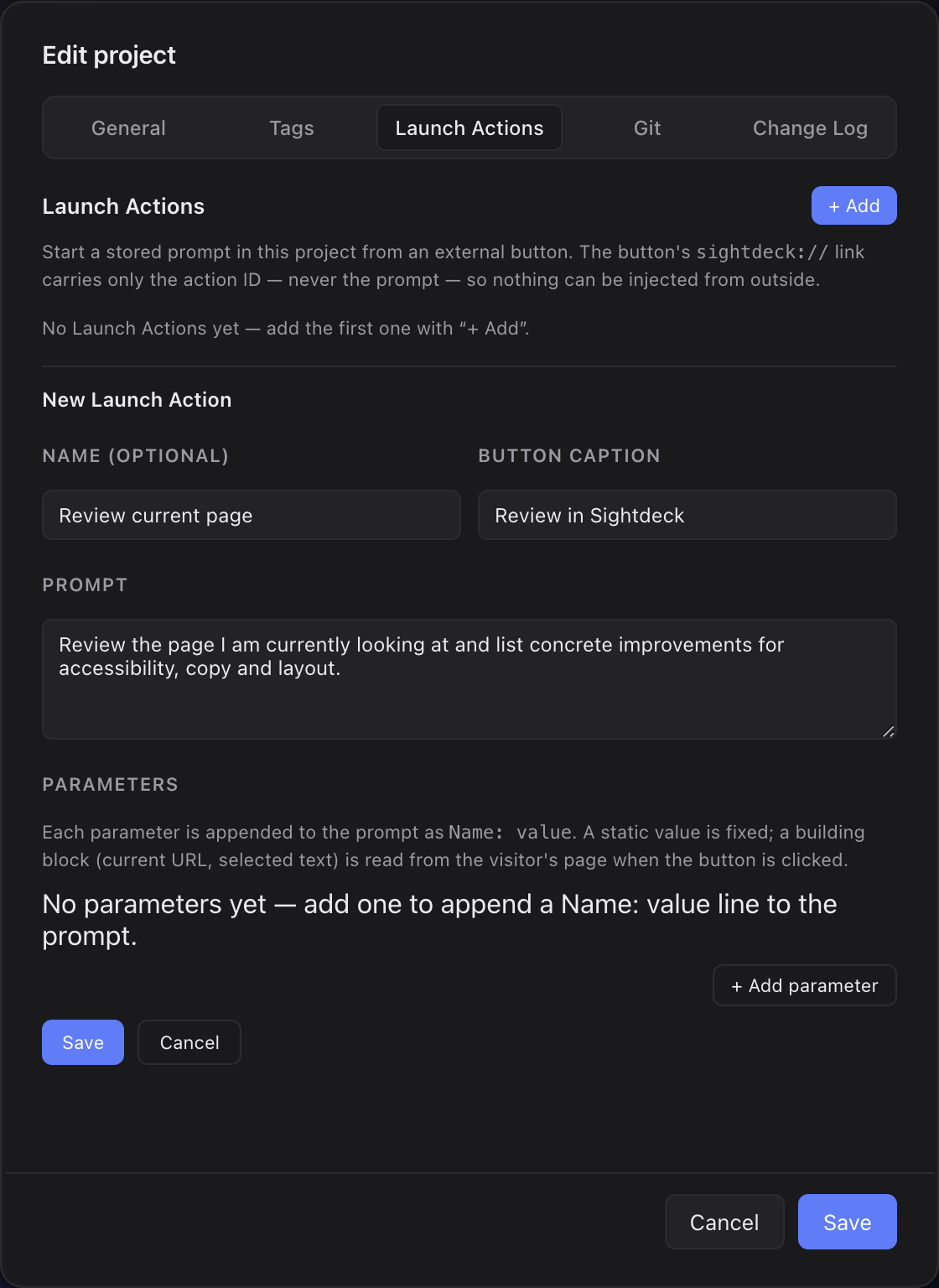
- Open Project Settings → Launch Actions and click + Add.
- Give the action a Name (an internal label) and a Button caption (the embed button's link text; falls back to Open in Sightdeck when empty).
- Write the Prompt Claude should run in this project.
- Optionally add Parameters. Each one is appended to the prompt as a
Name: valueline — either a static value you type once, or a building block (Current URL, Selected text) read from the visitor's page when the button is clicked. - Save, then copy the generated embed button and drop it wherever you want the trigger to live.
Clicking the button opens Sightdeck AI, resolves the ID to the owning project, and runs the stored prompt there. An unknown or deleted ID shows a visible error rather than doing nothing.
Examples
Launch Actions work best when the trigger lives on a page you're already looking at — a concept in a wiki, an internal docs site, a spec you can edit in the browser. Add the Current URL building block as a parameter and the prompt can act on whatever page the button sits on. A few patterns:
- Implement from a concept page. Keep your concepts on an editable documentation site and put an Implement button on each page. When a concept is ready, one click and Claude picks the work up straight from that page — no copy-paste. Prompt, with a Current URL parameter: "Read the content at the provided URL, create a task for it, then start the implementation."
- Plan a concept into an Epic. On a bigger concept, a Plan button turns the page into planned work instead of jumping straight to code. Prompt, with a Current URL parameter: "Read the content at the provided URL, create a task for it, then plan it into an Epic."
- Enhance a documentation page. For a page written in another language, an Enhance button that cleans it up: Claude reads the page, finds the matching Markdown file in the project, translates it to English and improves it. Prompt, with a Current URL parameter: "Read the content at the provided URL, find the corresponding Markdown file in this project, translate it to English and enhance it."
In each case the Current URL value travels over the deep link as a labelled line and is sanitised before it reaches the prompt — the button still carries only the action ID and that one value, never the prompt itself.