Before you start
This tutorial assumes you already have a project added and the skill installed — if not, run through Quick start first. Pick tasks that don't depend on each other; parallel runs work best when the tasks touch different areas.
Steps
- Drop your ideas into the backlog. Use the Quick-Add field to add each task as one sentence. Sightdeck AI refines each one — title, summary, kind, estimate, story points — in the background. See Backlog refinement for what the refinement fills in.
- Wait for the "Refining…" pills to clear. A task is ready to run once its pill is gone. Story points and duration help you judge which ones are genuinely small — read Story points & duration if the numbers are new to you.
- Select the tasks and bulk-start them in parallel. Multi-select the tasks you want to run together and choose the parallel start. Each task opens in its own lane and runs side by side — the full mechanics are in Bulk start.
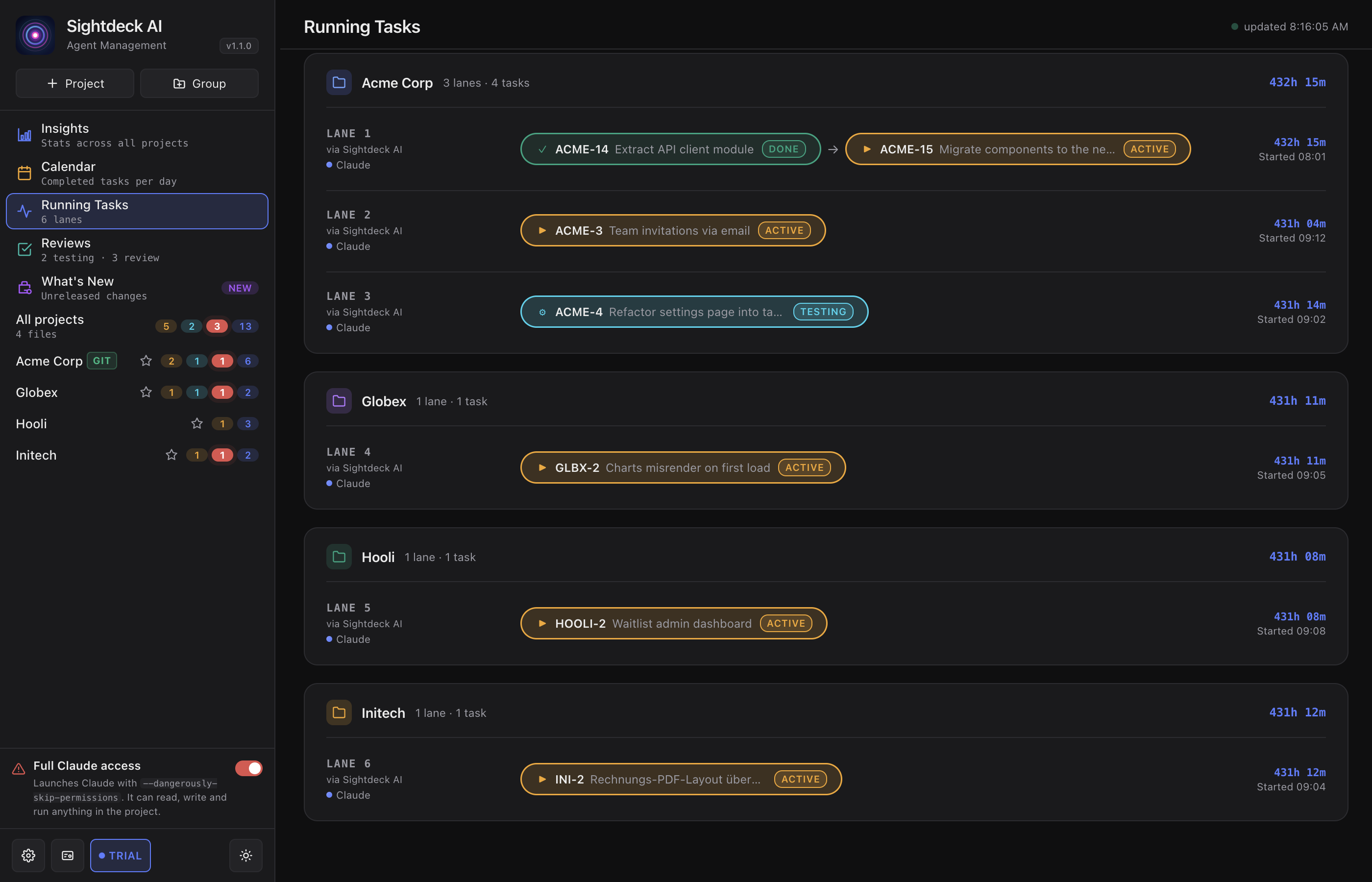
- Watch the lanes. The running view shows one lane per task with its live status pill. You can tell at a glance which are working, which are testing, and which have finished — see Running tasks.
- Answer anything that lands in Needs You. If a task needs a decision it flips to
feedback_requiredand jumps into the Needs You column with the question on the card. Answer it and the task resumes on its own — details in Needs You.
Prefer to queue instead of launch all at once?
If you'd rather Sightdeck AI start the tasks one at a time without you clicking each one, put them in Up Next and let the auto-scheduler work through the queue — see Up Next auto-scheduler.