What it is
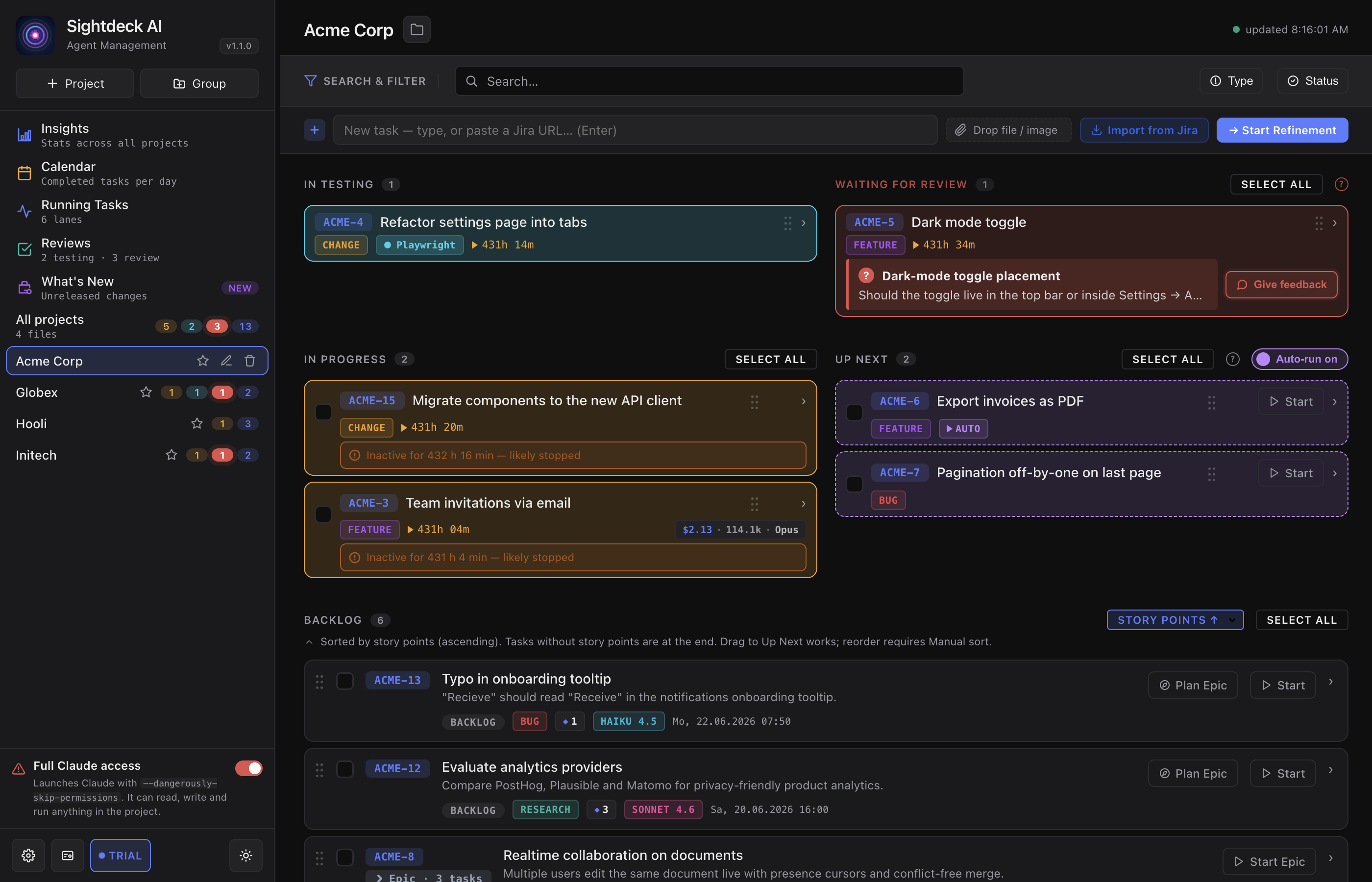
Claude Code normally asks for confirmation before it edits a file or runs a command. Full Claude access turns those questions off: Sightdeck AI then starts every session with --dangerously-skip-permissions, and Claude works through a task without stopping to ask.
The toggle sits at the bottom of the sidebar, above the settings row, and says exactly this on the card. It is a single global setting — not per project — and it applies to every session started from that point on.
It is on by default. That is a deliberate decision, not an oversight, and it is the one setting in Sightdeck AI worth a conscious yes or no before your first real task.
Why it defaults to on
Sightdeck AI exists to run tasks you are not watching: a queue that works itself off, several projects in parallel, an Epic that walks through the subtasks it was split into. A permission prompt stops the session and waits for a human. In a window you are not looking at, that means the run simply stands still — often for hours, and without any signal that it is waiting.
With the toggle on, a task that starts actually finishes. That is the trade-off in one sentence: you give up the per-step veto and get runs that do not stall.
What Claude may do with it on
Be clear about what you are agreeing to:
- Claude reads, creates, changes and deletes files without asking.
- Claude runs shell commands without asking — builds, tests, package installs, git commands.
- It removes the confirmation, not the reach. The session starts in your project folder, but a command it runs has the same rights your own user account has. Nothing technically confines it to that folder.
- Anything that goes wrong goes wrong at full speed — there is no step in between where you could say no.
How to turn it off
- Click the Full Claude access card at the bottom of the sidebar. The switch greys out.
- Sessions started from then on run without the flag — Claude asks you in its Terminal window before each step, exactly like a Claude Code session you started yourself.
- Click again to switch it back on. The choice is remembered across restarts.
Already-running sessions keep the setting they were started with; the change takes effect on the next launch.
What the toggle does not cover
Switching it off applies to the sessions you start — the Start button, Resume, Give feedback, bulk runs and the Epic chain.
Four paths always run with full access, by design, because there is nobody at the window to answer a prompt:
- the Up-Next auto-scheduler, including the sessions it restarts by itself,
- Schedules — anything a project fires on a timer,
- Launch Actions triggered from outside the app,
- tasks you start from Sightdeck Remote on your phone.
So if you turn the toggle off because you do not want unsupervised changes, keep the Up-Next queue and Schedules empty as well — otherwise those runs still work unattended.
Related
This toggle is about what Claude may do inside your project. What the app itself asks macOS for — controlling Terminal, notifications, folder access — is a separate topic: see Permissions & privacy.