
What it is
Sightdeck AI can run a small web server inside the app itself. You turn it on, scan a QR code with your phone, and the phone becomes a remote control for your agents: you see what is waiting for an answer, what is running right now, what is queued and what finished today — and you act on any of it, from answering a question to adding a new task or stopping a run.
Nothing is relayed through a cloud service, there is no account to create, and the server is off by default. You pick the port, and you pick explicitly whether it is reachable only from your own machine or from the network around it.
What you get
- The red Needs You column on your phone — which agent is asking, in which project, and what it wants to know — with an answer box and three one-tap replies under each question.
- A Running Tasks board on the phone: which projects have agents working, which run each task belongs to, which model is on it, and what it is doing this second.
- Taking work away, not just adding it: stop an agent that is on the wrong track, and pause the whole queue so nothing new starts while you are out.
- Judging a question with the reasoning behind it — the task's concept document sits on the same page.
- Getting a photo to the agent from where you actually are: the whiteboard you just sketched, or the screenshot of the bug, attached straight from your phone.
- Adding a task from the couch: type one line, park it in the backlog or queue it straight into Up Next. It gets refined on your machine like any other task.
- A list of which devices are paired and when each one last connected — and a way to cut off the one you lost without touching the rest.
- One place that says whether Remote is actually running, on which URL — and when it is not, why.
How you use it
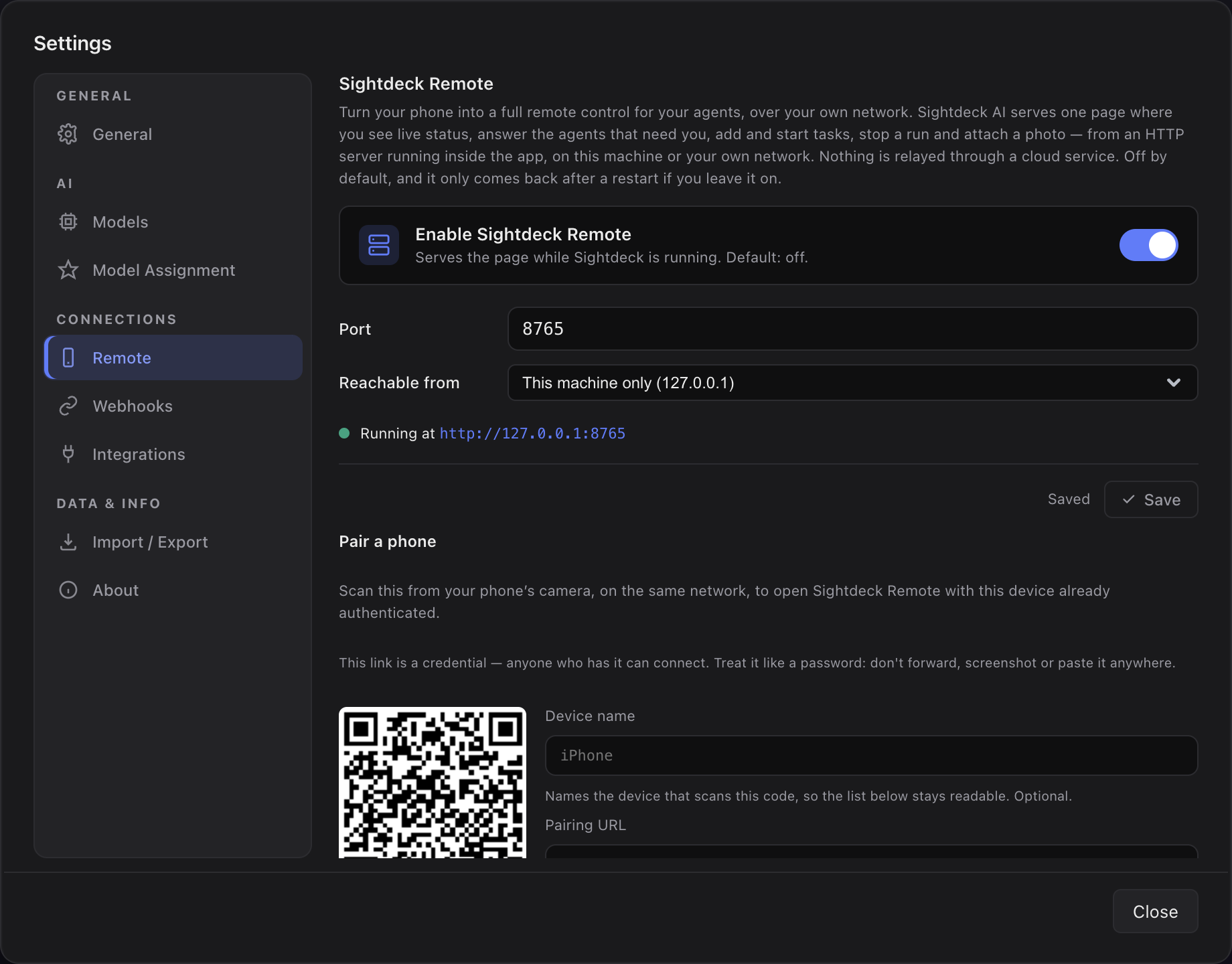
- Open Settings → Remote.
- Switch Enable Sightdeck Remote on.
- Pick a port — anything from 1024 to 65535, default
8765. - Pick Reachable from:
- This machine only (default) — nothing outside this computer can connect.
- This machine and my local network — other devices can reach it, and the app shows the address they should use (for example
http://192.168.1.42:8765).
- Click Save. It applies immediately, no restart. The line underneath shows the live state: Stopped, Running at <url>, or the error that stopped it.
- A Pair a phone card appears with a QR code. Scan it with your phone's camera — the link already carries the access token, so there is nothing to type and no login step.
Pairing your devices
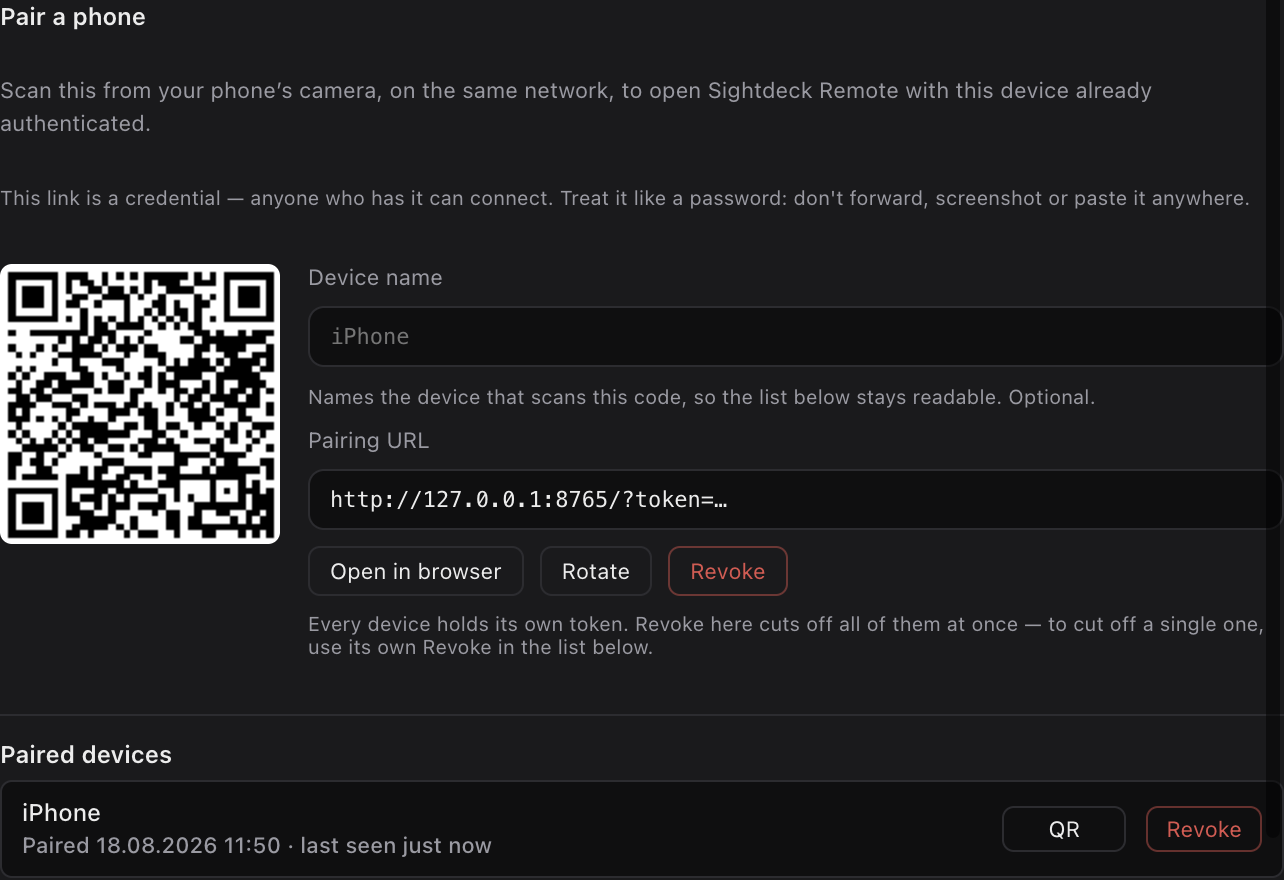
The QR code always shows a token no device has used yet. The phone that scans it claims that token as its own, and the card moves on to a fresh one for the next device — so every phone ends up with a token of its own rather than sharing one.
- Name the device before you scan. The Device name field above the pairing URL labels whichever phone is about to claim the code — "iPhone", "work phone" — and the name sticks to it, so the list underneath reads like your devices instead of a column of ids.
- Paired devices lists what actually holds a token: its name, when it paired, when it was last seen, and a Revoke of its own. Revoking one row cuts off exactly that device; every other one keeps working, with nothing to scan again. That is the answer to a lost phone.
- QR on a row shows that device's own code again. Use it when a link went stale rather than when a phone was lost — your machine picked up a new local IP, or you cleared the website data on the phone. It is the same token that row already holds, so the phone comes back as itself, keeping its name and its place in the list.
- Rotate replaces everything at once: every device paired so far stops working immediately, and the card shows a fresh code to scan.
- Revoke (the button next to Rotate, not the one in a row) clears every paired device. Reach for it when you want to start over, not when one phone is lost.
- Turning the toggle off closes the port outright.
The pairing survives a restart — a phone pointing at the same address keeps working without scanning again, and nothing expires on its own. Neither Rotate nor Revoke needs the current token, so a lost or exposed one is always one click away from being worthless.
The Remote pill in the app header
Settings is not where you spend your day, so the header rail carries a small Remote pill: a green pulsing dot while the server runs, grey while it is off. Click it for the pairing URL, Open / QR / Stop, and a link into Settings.
Next to the label sits the connected-device count, and the popover names the devices under Connected devices. The badge only appears above zero — no badge means nobody is connected, which is what the app looks like most of the time.
"Connected" means recent activity, not an open line: Remote is plain request/response, so a device counts as connected when it made a request in the last two minutes. A phone someone is actually using stays on the list; one put in a pocket drops off.
What the phone shows
The paired link opens the Overview; a switcher at the top moves to Running Tasks and back. A project dropdown scopes both to one project or shows all of them.
- Overview — four summary chips (Running, Testing, Waiting, Queued), an Auto-run switch, then the sections in order: Needs you, Now running, Up next, Backlog, Done. The Done list has a Today / Last 2 days filter, and your choice is remembered.
- Running Tasks — the same live picture as the desktop board, grouped by project and then by run. A serial run shows its tasks as a connected chain, so a queued task sits visibly behind the one currently working. The lane number is the same Lane N the desktop uses.
- Any task — tap a row for its detail page: summary, status, type, points, estimate, model, dates, tags, deadline, version, linked ticket, its concept document, its attachments, its recent history, and — while it runs — the tool and file its agent is on right now.
Running Tasks itself is read-only: tapping anything opens that task's detail view, and every action lives there or on the Overview.
The pages load nothing from the internet: no font, no library, no tracker. They work on a network with no internet access at all. Add the link to your home screen and it carries the Sightdeck icon like a normal app.
What you can do from the phone
- Answer a question. Type it, or tap one of the three fixed quick answers above the box — Yes, No, Decide yourself. The task moves from waiting to in progress with your answer on it, exactly as if you had answered at the desk. If you already started typing, tapping a quick answer sends what you wrote — a tap never throws away your text.
- Stop a run. Offered on a task that is working or verifying, and it asks first: the run's terminal window closes and the task goes back to the backlog. Whatever the agent had not finished is lost — there is no pause out here, only a stop.
- Pause or resume Auto-run. The same switch as the app's, at the top of the Overview. It is one switch for the whole machine, not for the project you scoped to, and it gates the next launch — what is running right now finishes normally. Pausing asks first; resuming is one tap.
- Read the concept. A collapsed Concept row on the task's page opens the document behind it, rendered and read-only, so you can judge a question by its reasoning instead of its title.
- Attach a photo. Take one or pick it from the camera roll; it lands in the task's attachments folder on your machine, where an agent working the task already looks. Images only (JPEG, PNG, GIF, WebP, HEIC), up to 10 MB, and nothing is ever overwritten.
- Refine a task. One tap hands a parked task to the same background refinement the app runs — title, summary, kind, estimate, points, model and tags. Offered for a task in the backlog or queued, never for one that has already started.
- Delete a task. Always behind a confirmation, and — unlike in the app — with no Undo out here. Deleting an Epic deletes its subtasks with it; the confirmation names how many first.
- Add a task. With the page scoped to one project, type one line and either Add to Backlog or Add & Start. It is refined in the background on your machine, exactly like a task typed into the app.
- Use a task template. If the project has templates, a dropdown above the box offers them — the same ones the app's new-task row shows. Pick one and the task is built from its prompt; the box then holds whatever you want to add on top of it, and may be left empty. A template that asks a question shows it as the placeholder.
Stop, Refine and Delete live on a task's detail view and nowhere else — a destructive action next to a list row is a mis-tap waiting to happen. An archived task offers none of them: it is frozen history, and restoring it is an in-app flow.
What it exposes — read this before you pick "local network"
Remote is the only part of Sightdeck AI that opens a network port, so be clear about the trade:
- Visible with the token: your task lists across all projects — titles, questions, status, live activity, the concept document behind any task, and the names of its attachments — plus every action above. Not your files, not your settings, not your git repositories: no route hands out file content, uploaded or not.
- Visible without the token: nothing but the fact that something is listening on that port. Every request, including the first page load, is refused until it presents the token.
- There is no HTTPS. On local-network scope everything travels in plaintext — the token on the first request, and the task titles and questions after it. Anyone who can read traffic on that network can lift it. That is the accepted price of pairing with one scan and no typing.
- A holder of the token can take work away, not just add it. Stop and Pause sit behind their own confirmation step, but behind no judgement about whether stopping was the right call. Delete is irreversible out here.
- A device list is not an audit log. It shows what is paired and when it was last seen — not what any of it did. Every action arrives as "somebody with a valid token".
Tasks you start from the phone run with full access, like every other unattended launch — see Full Claude access.
Good to know
- The saved setting and the running state are two different things. The fields show what you saved; the state line shows what the server did with it. They differ when a start fails — most often because the port is already taken. Pick a free port and save again.
- Quitting Sightdeck AI stops Remote. There is no listener that outlives the app, and a fresh install starts with nothing listening.
- It comes back after a restart only if you left the toggle on. The pairing comes back with it — only the address can go stale, if your machine picked up a different local IP.
- It is keyboard-navigable. Built for a phone, but it is served to whatever opens the link — a laptop browser or a phone driven by a switch works too.