
What you get
- One header control flips a project between List, Board and Roadmap — no sidebar detour.
- The Board shows six columns in pipeline order: Backlog, Up Next, In Progress, In Testing, Waiting for Review and Done.
- Your choice sticks across app restarts, so a project always opens in the view you left it in.
- Search, Status, Type and Tag filters work exactly as in the List — filter a status out and its whole column disappears.
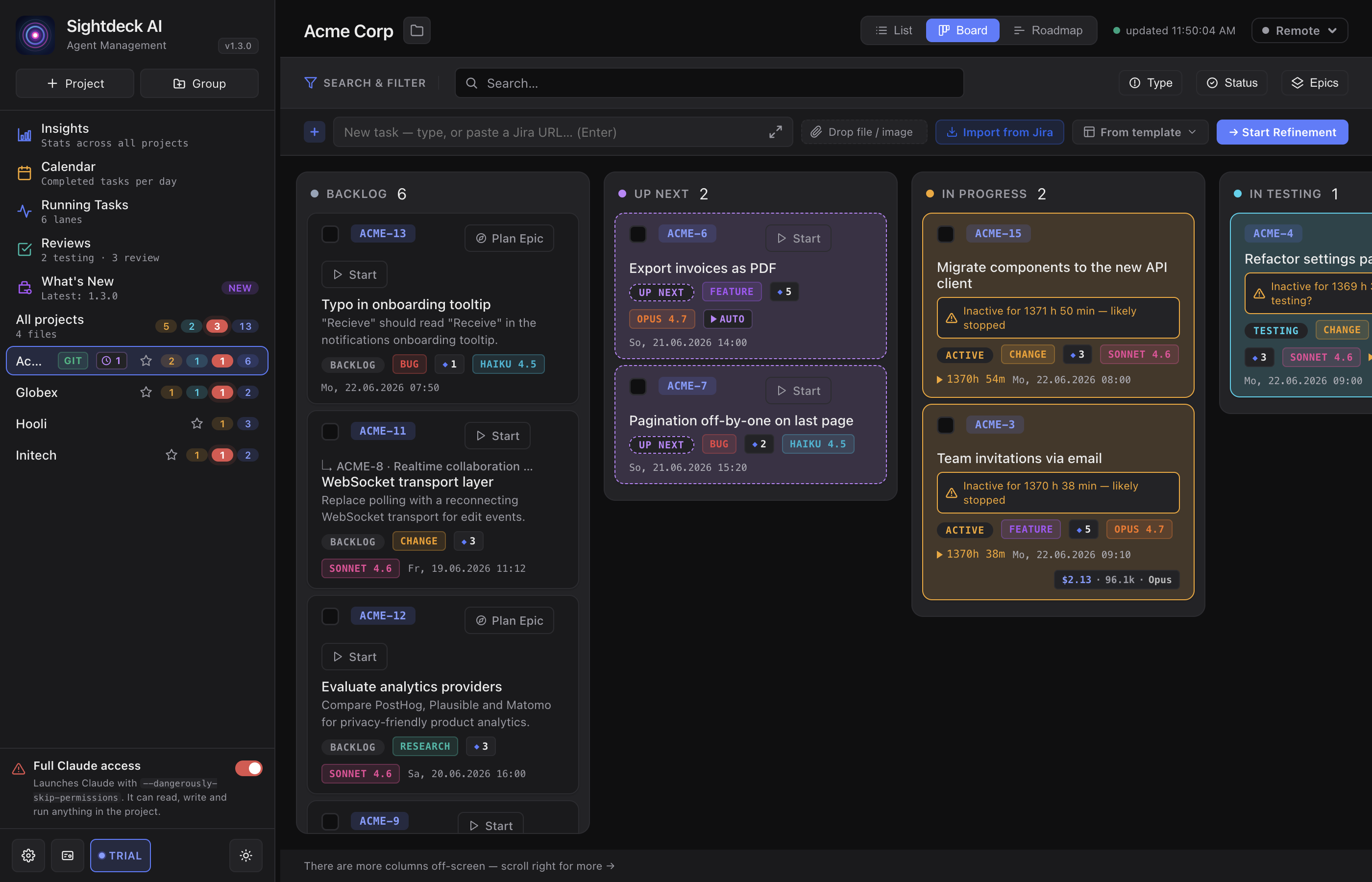
How you use it
- Open a project (or All projects) in the left sidebar.
- In the top-right of the header, click Board. Your tasks appear immediately, grouped into columns.
- Click any card to open its detail panel. Switch back to List when you want to reorder — see below.
Reading the columns
- Every task sits in exactly one column — the one matching its status. Epics and their subtasks each appear in their own status column; a
↳ Epiclabel keeps a subtask tied to its parent. - Backlog and Done show the full card (title, summary, meta). The running and waiting columns use a compact card so more fits at a glance.
- A task with a version set shows a version pill in the Backlog and Done cards.
- The Done column has its own recency window — Today by default, up to All — so a project with a long history doesn't load thousands of finished cards. A footer offers Load all when older done tasks are hidden.
- When a filter matches nothing, the Board shows a single "No tasks match your filters" state instead of a wall of empty columns.
Adding tasks on the Board
The Quick-Add bar stays at the top, same as in the List. A new task lands in the Backlog column and is confirmed with a toast ("Task created — added to Backlog.") until the card appears.
The Board is read-only for status changes for now: cards open the detail panel on click, but there is no drag-to-change-status. To reorder or move a task between statuses, switch to the List. For a time-based layout with dates and release milestones, use the Roadmap.