What it is
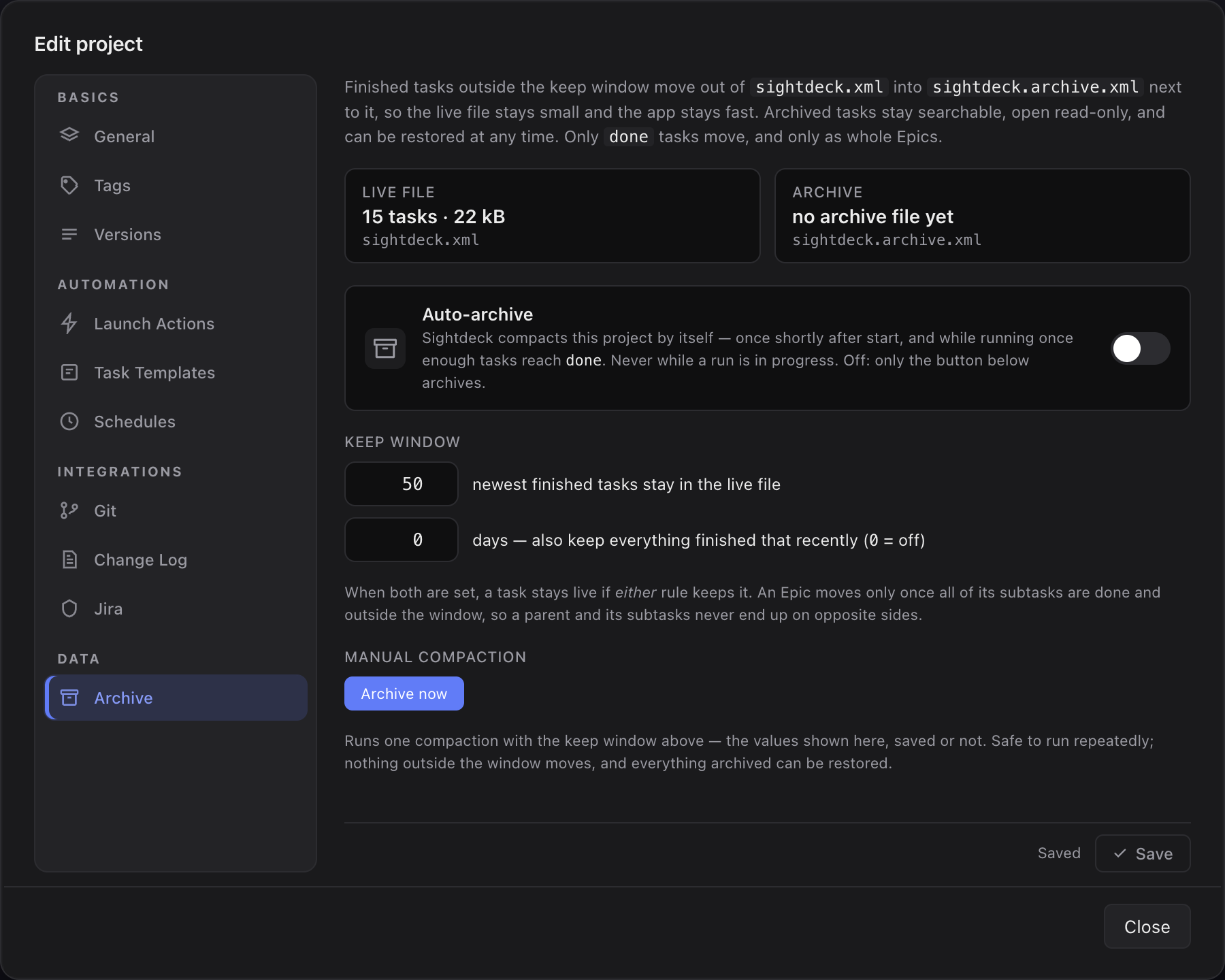
Only Done tasks ever move, and only outside a keep window you set — a count of the newest finished tasks, a number of days, or both. An Epic moves only once every one of its subtasks is done and outside the window, so a parent and its subtasks never end up split across the two files.
Archiving is per project and off by default — a project keeps everything in its live file until you switch it on in Project Settings → Archive.
What you get
- A live file that stays small even after years of use, so the board, search and startup stay fast.
- Nothing is deleted. Archived tasks stay searchable, open read-only to read the concept and history, and can be restored back into the backlog at any time.
- Two size readouts on the settings tab — Live file and Archive — so you can see the effect before and after you archive.
How you use it
- Open Project Settings → Archive.
- Set the keep window — how many of the newest finished tasks stay live, and optionally how many days to also keep regardless of count. When both are set, a task stays live if either rule keeps it.
- Switch on Auto-archive to let Sightdeck AI compact the project on its own — once shortly after the app starts, and again while running once enough tasks have reached Done. It never runs while any task in the project is mid-run.
- Prefer to control the timing yourself? Leave Auto-archive off and click Archive now whenever you want a pass — it uses the keep window shown on screen, saved or not, and is safe to run repeatedly since nothing inside the window ever moves.
Finding and restoring an archived task
Once a project has anything archived, an extra filter appears in the filter bar next to Search, Status, Type and Tags: a small archive icon with three modes — Live (default, archive hidden), Live + Archive and Archive only. Searching in either of the last two modes includes archived tasks in the results, each one clearly marked so you don't mistake it for an active row.
Open an archived task the same way as any other — its detail panel opens read-only, with the full concept and history intact. A Restore button puts it straight back into the project's live Backlog, ready to be reworked or just kept as a normal task again.