
What you get
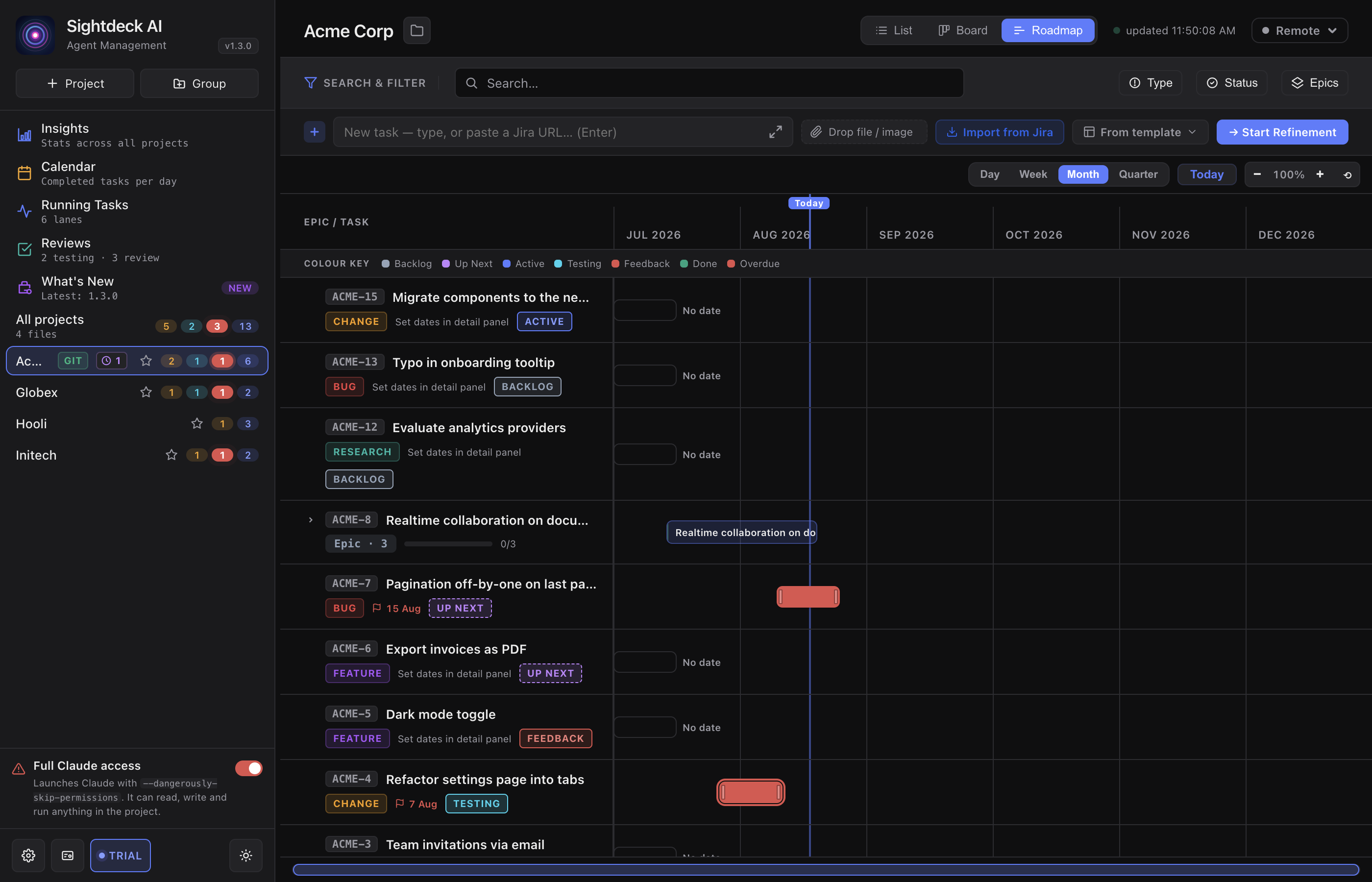
- A timeline with a switchable grain — Week, Month (default) or Quarter — that scrolls horizontally and opens centered on Today.
- Tasks appear as span-bars covering their start → end date; Epics span their subtasks' earliest-to-latest range and carry a done/total progress bar.
- Version milestones as dashed release lines, so you can see which release each task belongs to and how far along it is.
- Schedule and reschedule directly on the timeline — no detail-panel round-trip — with every change saved instantly.
How you use it
- Open a project and click Roadmap in the top-right header switch.
- Pick the grain — Week, Month or Quarter — in the toolbar above the timeline. Use the −/+ zoom and the Today button to move around; the mini-navigator below the timeline pans quickly across long ranges.
- Give a task dates: click anywhere on an undated task's empty lane to drop a 1-day span on that day, or set exact dates in the detail panel.
- Drag a bar's edges to resize the span, or drag its body to move the whole span while its duration stays fixed. A live tooltip shows the resulting working days and dates.
- Open a row's detail panel by clicking its name in the left rail (drag the rail's edge to widen it when titles get clipped).
Epics on the timeline
An Epic is an expandable row: the caret folds its subtasks in and out, and a progress bar shows how many of its subtasks are done. The Epic's bar is the envelope of its subtasks' dates — drag it to shift every subtask by the same amount, keeping their spacing and durations. Epic bars move but don't resize, since scaling the spacing from one gesture would be ambiguous.
Deadlines vs. planned span
A task's span is its planned work window. A separate Deadline — the "must ship by" date — does not move the bar; it colors it with a warning ring: red when the deadline is past, amber when it is within the next 7 days. Set it in the detail panel's Deadline picker.
Versions & release milestones
Create versions and their release dates in Project Settings → Versions, then assign a task to a version from its detail panel. On the Roadmap each version shows as a dashed vertical milestone with a header flag (for example v2.5), sitting at the latest end date among its tasks. A version reads as released once every task assigned to it is done, otherwise planned — so the Roadmap doubles as a release-progress view. Version pills also show on Backlog and Done cards in the Board.
Notes
- Rows are sorted by ticket ID, a stable order that never reshuffles when you add or resize a bar.
- An undated task still gets a row — a placeholder bar pinned to the far left — so it stays visible until you schedule it.
- Search, Status, Type and Tag filters narrow the rows, and a too-narrow filter shows a "No tasks match your filters" state rather than an empty timeline.
- The Roadmap always uses the full task set, so Epic completion and version progress stay correct regardless of the Board's Done recency window.