
What you get
- A per-project list of reusable prompts — each is just a name and the prompt text that fills the new-task input.
- A From template button in the new-task row, shown only when the current project actually has templates.
- One click creates the task and starts refinement — exactly as if you'd typed the prompt and pressed Enter.
- Optionally, a template that asks you something first: a small popup collects one extra line that is added on top of the stored prompt.
How you create one
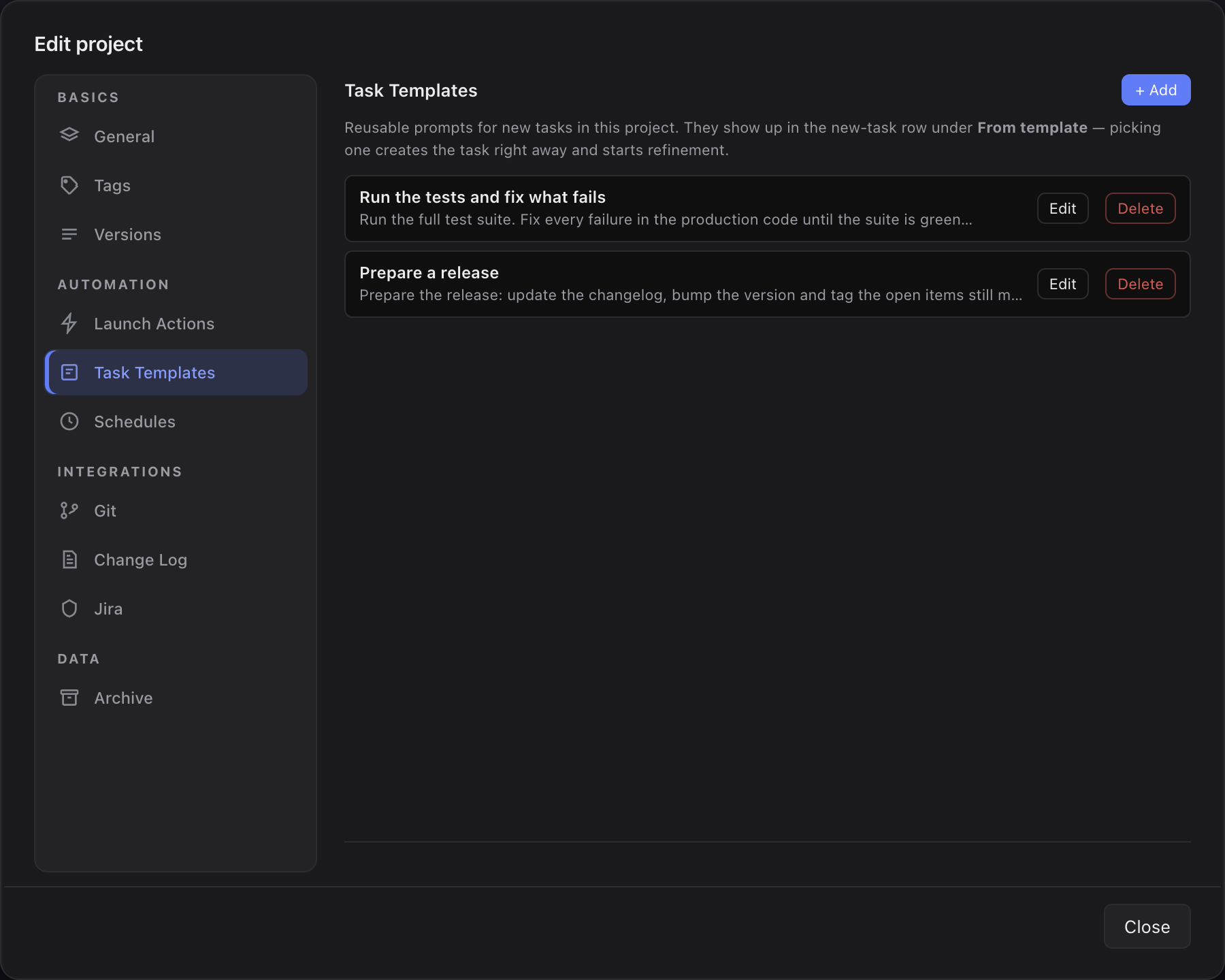
- Open Project Settings → Task Templates.
- Click + Add. Give the template a Name (for example "Run Cypress and fix errors") and the Prompt that should fill the new-task input.
- Optionally switch Ask for input when used on, and give it a Popup label — the question you want to be asked, for example "Which version?". The label is optional; without one the popup just asks for additional input.
- Click Save. Each template appears as a row with Edit and Delete (Delete asks first).
The stored prompt has no variables or placeholders to fill in — Ask for input is the one way a template varies per use, and what you type is put in front of the stored prompt rather than substituted into it. Good candidates for a plain template are the routine jobs you run in every project: "Start Cypress and fix all failing E2E tests", "Run make pr and fix any linter or unit test failures".
How you use one
- In the new-task row of the task list, click From template.
- Pick a template. The task is created immediately in the backlog and refinement starts on it — no extra confirmation step.
- A template marked Input in the picker opens its popup first. Type the extra line and hit Create task (or Cmd/Ctrl+Enter). Leave it empty to use the template on its own, or cancel to create nothing at all.
What you type is carried into the prompt together with the question, so a bare answer like "1.3.0" still reads as "Which version? 1.3.0" for the agent — the context is not lost.
Deleting a template only removes it from the picker; tasks you already created from it are untouched. The button is hidden in the cross-project "All projects" scope — templates belong to a specific project.